

Article feedback/Version 5/Feature Requirements
 | This page is obsolete. It is being retained for archival purposes. It may document extensions or features that are obsolete and/or no longer supported. Do not rely on the information here being up-to-date. This project is no longer under development by the Wikimedia Foundation. See Article feedback/Version 5/Report#Wikipedia Article Feedback corpus for the datadumps, and the rest of that page for the wrapup. The extension is maintained by ShoutWiki for Brickipedia since September 2016. |


This page describes new features under development for the Article Feedback Tool Version 5 (AFT V5), from Oct. 2011 to August 2012. (See sample feedback forms on the right)
See also: project overview page, useful links, as well as technical design page, data and metrics plan and our live metrics dashboard.
Overview[edit]


Key features for AFT V5 include:
- feedback forms
- calls to action
- feedback page
- monitoring tools
For an overview of how these features work together, check the article feedback map (see thumbnail to the right). In phase 1.0 of this project (Dec.-Feb. 2011), we created and tested three different types of feedback forms, described below. Test results showed a slight overall preference for Option 1 (even though the other two options were also found useful). For that reason, we plan to optimize our overall design for Option 1 in the next phase of development. To learn more, read our report on the Wikimedia blog.
In the next phases of this project, we developed and tested these additional features:
Other features under consideration for later development are outlined below.
For a preview of what these forms and pages look like, read below, or check our project slides.
Feedback forms[edit]
Final Feedback Form (Option 6)[edit]

We have developed a final version of the article feedback form (based on Option 1, as described below), to be more intuitive for the user and take less real estate on the page, while still supporting the basic functions which it now provides (see workflow diagram to the right). To that end, this new feedback form progressively reveals the current feedback form content in these 3 incremental steps:
- Step 1: Simple Question
- Step 2: Add a comment
- Step 3: Thanks + Call to Action
We aim to increase both the visibility of the form and the continuity of its experience, on the assumption that it may only appear at the bottom of the page in most cases. See wireframe prototype.
Collapsed Form (step 1)

We are developing a simple 'expandable form' -- roughly the same Option 1 form described below, but only showing the top half by default (collapsed state), as outlined below:
Help improve this page < What's this? >
Did you find what you were looking for? [ Yes ] [ No ]
When you click on the Yes or No buttons, we will simply expand the rest of the form to reveal its contents:
- text box (3 lines) with current prompts
- links to guidelines and legal terms
- 'Post your feedback button
Expanded Form (Step 2)

The expanded form would look something like this:
Help improve this page < What's this? >
Great. Would you like to add anything else? [if the user answered 'Yes']
OR:
Sorry about that. How can we make it better for you? [if the user answered 'No']
[ Text box (3 lines) with current prompts:
• Yes: "What was most useful to you? How could this article be improved?" OR
• No: 'What's missing? Any suggestions for improvement?' ]
Please post <helpful feedback>. By posting, you agree to transparency under these <terms>.
[ Post your feedback ]
This form also includes a 'go back' icon next to the title to take you back to step 1, as well as displays the number of remaining characters above the text box.
Thank you CTA (Step 3)

We will display different calls to action (CTA), which are outlined in the next section. It is likely that we will rotate between 3 different CTAs, such as CTA1 (Edit this page), CTA2 (Learn more - if the page is protected), CTA3 (Take a survey), CTA4 (Sign up or Log in) and CTA5 (View feedback).
For example, here is updated text copy for CTA 1:
Thanks! Your feedback has been <posted here>. < What's this? >
Did you know that you can edit this page? Wikipedia works because anyone can edit its articles. Go ahead, give it a try. Be bold!
[ Edit this page ]
This approach makes the form more visible from the start, with a bold 'Improve this page' title that grabs your eye and gives more purpose to the question on the second line below. It also provides continuity by keeping the same title throughout the experience, from the initial feedback link to the question screen 1 and comment screen 2. It also seems to be a practical solution from a development standpoint, as it doesn't force us to rebuild the form from scratch.
Help Tool Tip[edit]

When you click on the question mark icon on any of the forms, you get a small tooltip that will link to the upcoming AFTv5 help page.
Here is the updated text copy for this tool tip:
"What's this?
Wikipedia would like to hear what you think of this article. Share your feedback with the editors -- and help improve this page.
Learn more >>"
'Learn more' should link to the help page URL that matches your appropriate user group, as so:
- Article Feedback Help for Readers
http://en.wikipedia.org/wiki/Wikipedia:Article_Feedback/Help/
- Article Feedback Help for Editors
http://en.wikipedia.org/wiki/Wikipedia:Article_Feedback/Help/Editors
- Article Feedback Help for Monitors
http://en.wikipedia.org/wiki/Wikipedia:Article_Feedback/Help/Monitors
- Article Feedback Help for Oversighters
http://en.wikipedia.org/wiki/Wikipedia:Article_Feedback/Help/Oversighters
The same context-sensitive help URLs will be used behind every other help link, from the question mark icon to the help link at the top of the feedback page.
Earlier feedback forms (Options 1-3)[edit]
In phase 1.0 of this project (Dec.-Feb. 2011), we created and tested three different types of feedback forms, described below:
We tested these options against each other, to find out which is most effective for engaging readers, supporting editors and improving article quality (see data and metrics page). The feedback form interface appeared on every article selected for our phase 1 test, as the current AFT4 does now on the rest of the English Wikipedia (unless disabled in user preferences).
After comparing the results of our various research studies, we observed a slight overall preference for Option 1 (even though the other two options were also found useful). For that reason, we plan to optimize our overall design for Option 1 in the next phase of development. We will keep all other options in mind as we refine that design for the next version of this tool, and will consult with members of our community at each step of the way. To learn more, read our report on the Wikimedia blog.
Option 1[edit]
To see this version of the feedback form in action on Wikipedia, click here. (The picture above is a mockup - see also earlier prototype screenshot and wireframe for this feedback tool.)
This feedback form includes these design elements, from top to bottom, left to right:
- Title: 'Help improve this article' (instead of earlier titles: 'What do you think?' or 'Share your feedback')
- Help button (link to static page or FAQ with tips on how to give feedback)
- Question: 'Did you find what you were looking for?'
- Yes/No Buttons:
- The yes/no buttons shall have a button appearance, but function as radio buttons.
- Clicking a yes/no button shall toggle the yes/no switch state, but not submit the form.
- The yes/no answers shall be stored in a separate field, as well as mapped to 4 and 2 overall ratings
- Clicking on yes/no buttons will cause a context-sensitive text prompt to appear in the comment box (see below)
- A comment box (multiline text area)
- A gray text prompt inside the comment box (after user clicks yes or no, e.g.: 'What's missing? Any suggestions for improvement?' - see below)
- Small disclaimer text with links:
'Your comment will be shared on this [feedback page]. (phase 1.5)
By posting, you agree to transparency under these [terms]' (phase 1.0)
- Post button: '[ Post your feedback ]'
Context-sensitive text prompts:
The prompts in the text area are context-sensitive, so you get a different message if you click on Yes, rather than No.
- Yes: "What did you like most? Share your praise with the editors."
- No: 'What's missing? Any suggestions for improvement?' (as shown in this wireframe)
- If neither Yes/No button is selected, do not show text prompt.
- To give users maximum freedom in option 1, we will allow a user to enter a comment in that form, even if they don't want to click on the Yes or No button. So the 'Post your feedback' button should become blue as soon as the user types in the comments box (instead of forcing them to use the Yes/No buttons).
- Similarly, a user should have the option to click 'Yes' or 'No' and post without any comments.
- As soon as a 'Yes' or 'No' button is clicked or a comment is typed, the 'Post your feedback' button will become blue (instead of the default gray).
- The small legal text at the bottom of all forms will link to this privacy statement (on all forms):
"By posting, you agree to transparency under these <terms>".
foundation:Feedback_privacy_statement
Option 2[edit]

To see this version of the feedback form in action on Wikipedia, click here. (The picture above is a mockup with new face icons from Brandon - see also earlier mockups with color icons, with only one tab selected and with all color hilites.)
This second variation of the feedback form focuses on the text comment and its label (tag).
- The title of the form shall be "Help improve this article" (used to be context-sensitive)
- Label selection (default selected is 'suggestion')
- Comments box (multiline, with different prompt depending on selected label)
- Post button (caption shall reflect the selected label).
- Links to the feedback page (1.5) and privacy policy (1.0)
Interface functional details:
- The labels selection shall function as tags selection, only one can be selected at any time.
- Selecting a label shall change the default placeholder text for the comments box, only if no text had been entered yet
- If text had been entered in the comment box, it shall persist through label changes.
- To further clarify, there is only one text input box.
Context-sensitive text prompts:
The prompts in the text area are context-sensitive, so you get a different message if you click on Suggestion, Praise, Problem or Question.
- Suggestion: "Make a suggestion! How can this article be improved?"
- Question: 'Ask a question about this article. '
- Problem: 'Report a problem. How can this article be improved?'
- Praise: "What's most useful to you? Share your praise with the editors."
Context-sensitive button labels:
Ideally, we would have different button labels for each type of feedback, if easy to do:
- "Post your suggestion"
- "Post your question"
- "Post your problem"
- "Post your praise"
If this is hard to do, we will just have the button say: "Post your feedback"
Note: This form design is inspired in part by GetSatisfaction.com.
Option 3[edit]

To see this version of the feedback form in action on Wikipedia, click here. This version of the feedback form provides the users with the ability to give an overall rating to the article (see rating functionality above), and a comment. Labels/tags input are not provided on this form. The visual appearance shall be the same as option 1, but have 5-star rating widget instead of the yes/no buttons.
Updated text:
- Title: 'Help improve this article'
- Subtitle: 'How would you rate it, overall?'
- Comments prompt: 'Add a comment. How can this article be improved?'
- Small text: 'By posting, you agree to transparency under these [terms]'
Option 4[edit]

(streamlined mockup for this call to edit.)
This variation will be tested in phase 1.4 and does not provide feedback options. Instead it is a direct call for the readers to edit the article.
- The "Edit" button takes the reader to the article's edit page.
- The "learn how to edit" link takes the reader to this New Wikipedia Tutorial].
- Both registered and anonymous users shall be able to edit the page, as per current Mediawiki functionality.
- If the article is not editable by the user (according to its protection level), another interface option is to be displayed instead (options 1-3 or 5)
- If the user has been blocked from editing by Wikipedia, another interface option will be displayed as well.
- Wikimedia's standard CTA button with arrow is used in this mockup.
Here is the text copy for this option:
"Help improve this article
Did you know that you can edit this page?
Wikipedia works because anyone can edit its articles. Go ahead, give it a try. Be bold!
Learn how to edit >>
Edit this page => "
Option 0[edit]
The last option we will give to users during our metrics test 3 will be no feedback form at all. (option 0)
Overall Features[edit]
Overall Functionality
- During the first testing phase, new feedback forms will only be shown on a subset of articles in the english encyclopedia (e.g.: Obama). They will not be shown for articles that are newly created, or which do not include any significant content, or which include geo-tags.
- Feedback forms and feedback links will not be shown either if the user has selected to hide the AFT (checked 'Don't show the Article feedback widget' in Preferences > Appearance >)
- The feedback form option to display shall be selected randomly, as per the current AFT mechanism. See this bucketing flowchart.
- The "bucketing" mechanism will work as described in this flowchart and the technical design page. It will not be configurable, but should be easily changeable in code.
- For testing purposes, an override parameter shall be supported in the bucketing mechanism (e.g.: a URL tag specifying which form to show).
- All feedback forms will be displayed at the bottom of the article pages by default.
- We are also planning to test three different 'Feedback' text links higher up in the browser window, as described in the #Placement Placement section below. If a user clicks on one of the feedback links described in the Placements section below, the feedback form will be shown as a modal overlay next to the feedback link (or at the very least provide a jump link to the form at the bottom, if overlays cannot be implemented on certain browsers). Overlay forms will include a close 'X' button and the page background will be grayed out.
- Comments can be as long as 5,000 characters (no countdown will be shown for now, but we will simply not allow the user to type any more text beyond that limit)
- For returning users (registered & logged in, already provided feedback for this article): the form will be blank, even if you provided feedback earlier. But this text link will be shown: 'See your last post >>' with a link to your last post(s) on the feedback page, sorted by user. Unlike with the AFT v4 form, users will not be able to edit previous feedback.
- when calculating overall ratings (or yes/no answers), only count the last post rating, not an average of all ratings by that user for that article
- Feedback forms may not be shown either if a user (or IP address) has been permanently blocked from editing on Wikipedia (exact policy TBD)
- Anyone can post as many feedback items as they want for a given article (TBD: to prevent spam, do we want to set a limit of 10 posts per user per day?).
- In phase 2.0, we may also give the users 30 minutes or so to go back and edit their feedback, in case they make a mistake they want to correct. This may be done by adding an edit link next to your posts on the feedback page.
Overall Visual Design
- For a quick demo of the various options considered for this experiment, see this interactive prototype.
- The feedback form interface shall follow the Mediawiki style guide, as well as the look and feel of WMF's latest Call to Action assets and buttons.\
- The 'Post your feedback' buttons will be shown on the left of the form (where it is most likely to be clicked on than on the right).
- All text prompts in comments to be gray, not black, as commonly done on other sites. The user comments themselves should be black, not gray.
- A close 'X' button will be shown at the top right corner of all overlay versions of the feedback forms. This close button would not be shown on the bottom versions of the forms, where only the help icon would appear. Both the help and close buttons should be consistent in shape and size, with the '?' and 'X' as the primary differentiators.
- When a feedback form is shown as a modal overlay, let's gray out the background, as done in the WikiLove feature (but perhaps using a lighter shade of gray).
- The forms should survive and degrade gracefully in a visual manner within three design styles: Normal web page (580 px minimum, grow horizontally with grace); Tabletized web page (580px); Mobile (max 320 px, give 5 on each side, for 310)
- All links will be underlined on hover (as per the style guide). External links and links that open in another window shall have an appropriate icon next to them.
- Feedback forms should also display summary statistics. For Option 1, this could be "% found what they were looking for" and # of total comments.
- To discuss: Should these statistics should ideally be hidden behind a click so as not to influence the reader (e.g., reader needs to click a "view stats" button)? Or does having the statistics in plain view suggest activity on the site?
Font Sizes:
We will aim to use the following font sizes, with this proposed hierarchy across all forms:
- Title: 1.4 em / 16 pt (e.g.: 'Help improve this article')
- Subtitle: 1.2 em / 14 pt (e.g.: 'Did you find what you were looking for?')
- Button Labels: 1.2 em / 14 pt (e.g.: 'Yes / No', or 'Post your feedback')
- Comments: 1.0 em / 12 pt (for both gray text prompts -- and for actual user comments)
- Small text: 0.8 em / 10 pt ('By posting, you agree to transparency under these [terms]')
Note: For final text copy, please refer to the text descriptions above, rather than the graphic wireframes and mockups, which could be out of date.
Throttling[edit]
To prevent spam, we will throttle all feedback posts to only allow 20 posts per user per hour. If a user exceeds that limit, their post will be disallowed and a message will be shown, saying: "Your post has been rejected because you have recently posted more feedback than recommended in Wikipedia's feedback guidelines. Please do not post feedback repeatedly or excessively."
This feature may be implemented using a cookie, to keep track of when users posts feedback. For example, we may look at the timestamps of the last 20 posts from that user, and reject the post if the first timestamp is less than an hour ago.
(Developer note: due to browser limitations on number and size of cookies, it isn't feasible to track per-article activity using only cookies. So, we changed requirements to be based on site-wide feedback activity and the threshold was increased to 20 posts per hour - that setting configurable via usual method for configuration variables within AFT.)
Calls to Action (CTAs)[edit]
After readers post their feedback, they will see one of these calls to action (CTAs):
- CTA 1: edit this article (for unprotected pages only - anyone can edit, even if they are not logged in)
- CTA 2: learn more (shown to non-editors only, either if the page is protected, or at random)
- CTA 4: create an account or login (only shown if the user is logged out)
- CTA 5: see what others are saying (most editors see this this CTA by default, but some readers also occasionally see it at random)
- CTA 6: Need help editing Wikipedia? (only shown to confirmed editors or higher, this links to Teahouse)
Calls to action that have been discontinued or postponed:
- CTA 3: take a survey (link to survey page) - this call to action has been discontinued for now, but may be used again
- CTA 7: get email notifications (if my post is used) - this call to action has been postponed for now
See proposed bucketing plan below.
CTA 1: Edit this page[edit]

This 'thank you' confirmation is shown after a user posts feedback, and includes a call to action (CTA). This CTA invites the user to try editing the article they just gave feedback (see earlier mockup for 1.3). We will start the test in December with only this call to edit for phase 1.0, but plan to add more CTAs in phase 1.3.
This a direct call for the readers to edit the article.
- The "Edit" button takes the reader to the article's edit page.
- The "learn how to edit" link takes the reader to this New Wikipedia Tutorial].
- Both registered and anonymous users shall be able to edit the page, as per current Mediawiki functionality.
- If the article is not editable by the user (according to its protection level), another call to action is to be displayed instead
- If the user has been blocked from editing by Wikipedia, another interface option will be displayed as well.
Here is the text copy for this CTA:
{checkmark} Thanks! Your feedback has been <saved>.
Did you know that you can edit this page?
Wikipedia works because anyone can edit its articles. Go ahead, give it a try. Be bold!
Edit this page =>
View Feedback Page >>
Learn how to edit >>
- The "learn how to edit" link takes the reader to the Wikipedia Tutorial:
- Wikimedia's standard CTA button with arrow is used in the above mockup, which uses small versions of the button and arrow graphics.
CTA 2: Learn more[edit]

This a call to action for readers who can't edit this article -- to learn how they can contribute to Wikipedia.
This 'thank you' confirmation is shown after a user posts feedback on a page that is protected or semi-protected. It includes a call to action (CTA) that invites the user to learn more about improving Wikipedia. In phase 1.0, this CTA will be shown when a user cannot edit the page they gave feedback on, because it is protected (instead of showing the call to edit this article). More CTAs will be added in phase 1.5.
Here is the text copy for this CTA:
{checkmark} Thanks! Your feedback has been <saved>.
Help improve Wikipedia
This encyclopedia is created by people like you. Can you give us a hand?
Learn more =>
- The "Learn more" button takes the reader to this New Wikipedia Tutorial].
- Wikimedia's standard CTA button with arrow is used in the above mockup, which uses small versions of the button and arrow graphics.
CTA 3: Take a survey[edit]

The purpose of this Survey Call to Action (CTA3) is to learn what readers think about this article feedback tool, overall. We also want to find out which feedback form is most helpful to participants. This short survey will include three elements:
- A. a call to action asking them to take the survey (CTA3)
- B. a quick survey form
- C. a thank you message
The last two items are specified in a separate section below, called 'Surveys'
The survey CTA3 will be shown for a limited time, after filling the feedback form, and will be implemented using the same visual and experience style as other AFT5 calls to action. The quick survey form will be shown after they click 'Start the Survey', and will be implemented by Wikimedia using Survey Monkey, using a neutral style (see latest version on Survey Monkey). The thank you message will also be implemented with Survey Monkey, using the same neutral style, linking to the tutorial on how to edit Wikipedia.
Here is our proposed copy and functional elements for each touch point below:
A. Survey Call to Action (CTA3):[edit]
√ Thanks! Your feedback has been saved.
Please take a quick survey
It only takes a minute and will help improve Wikipedia.
[ START THE SURVEY ]
[this big blue button will link to one of the Survey Monkey forms -- one for each feedback option]
CTA 4: Create an account or login[edit]

The purpose of this CTA4 is to encourage logged-out users to to create an account or login.
This call to action is only shown to logged-out users, and is now displayed randomly 100% of the time to these anonymous users. It works much like other CTAs -- except that it has one big blue button ("Create an account", linking to the account creation page), and a smaller text link ("log in", linking to the log-in page). As with other CTAs, the first line includes a link that shows the last post from that user on the feedback page.
Here is the text copy for this CTA 4:
Thanks! Your post can be viewed on this <feedback page>. [go to my last post on feedback page]
Join our community Sign up or log in, so others can respond to your feedback. Your free account makes it easier to share what you know on Wikipedia.
[ Create an Account ] or < Log in > [links to account creation or log-in pages]
Note that we are discussing alternate wordings for this CTA, as proposed by this feature under consideration: 'Sign up to track your comment'. This CTA was originally adapted from an earlier version used in AFT v4, with some changes to the wording, as well as the look and feel.
CTA 5: View feedback[edit]

The purpose of this CTA5 is to encourage editors to visit the article feedback page. This CTA5 is the primary call to action shown to editors (along with CTA6 Teahouse). It may also be shown to readers, in rotation with CTA1, CTA2 and/or CTA4.
This new call to action works much like CTA 1 or CTA 2 -- except that the big blue button links to the feedback page for this article. Also, the first line includes a link that shows the last post from that user on the feedback page.
Here is the text copy for this new CTA 5:
"Thanks! Your feedback has been <posted here>. [go to my last post on feedback page]
See what others are saying about this article.
View suggestions from other readers like you.
Can you help pick the best ideas?
[ See all comments ]" [link to feedback page for this article]
CTA 6: Visit Teahouse[edit]

This CTA6 invites auto-confirmed editors to visit the Teahouse in order to learn more about editing.
Here's the current copy:
'Need help editing Wikipedia?
To discuss editing on Wikipedia, come to the Teahouse, where new and
experienced editors gather to exchange helpful tips.
[Visit Teahouse]'
This will link to the Teahouse, with an ATT ref tag, as so: http://en.wikipedia.org/wiki/Wikipedia:Teahouse?ref=aft
From a bucketing standpoint, this CTA6 would only be shown to 10% of users who are auto-confirmed editors. It would not be shown to readers. (This was enabled it at 10% by lowering the odds of CTA1 from 50% to 40%).
CTA Bucketing[edit]
Our proposed bucketing plan for CTAs is as follows:
We propose to show different CTAs each time you post feedback, as appropriate for your user group, and based on your context.
So if you are a reader, we would show these CTAs:
- CTA4 - Create an account or log in - 100% of the time (if they are logged out)
But if you are a registered user or editor, we would alternate between these CTAs:
- CTA5 - View feedback page - 90% of the time
- CTA6 - Visit Teahouse - 10% of the time (if they are auto-confirmed)
Survey 1: Feedback form[edit]
Here are some of the features we developed for our feedback form survey.
A. CTA 3 - Take a survey:[edit]
See CTA3 spec above for more details on this first step in getting visitors to take this survey.
B. Survey Monkey - Quick Survey Form:[edit]
Wikimedia Foundation is developing a new feedback form and would like to know what you think.
1. What do you think of that feedback form you just filled in?
( ) I like it.
( ) I do not like it.
( ) I am not sure
2. Why? How can we improve that feedback form?
_________________________________
__________________________________
__________________________________
3. How often do you edit articles on Wikipedia?
( ) never
( ) rarely
once a year
( ) once a month
( ) once a week
( ) once a day
( ) throughout the day]
You agree your responses may be used in accordance with these Terms.
[ SUBMIT ]
C. Survey Monkey - Thank you Message[edit]
√ Thank you!
Help improve Wikipedia This encyclopedia is created by people like you. Can you give us a hand?
Learn more =>
link to the tutorial on how to edit Wikipedia
Survey 2: Feedback page[edit]
Here are some of the features we developed for our feedback page survey.
A. Button: What do you think of this page?'
The feedback page will include a button labeled "What do you think of this page?", at the top right of the page.
B. Survey Monkey - Survey Form:'
Survey: New Feedback Page
Wikimedia Foundation is developing a new feedback page and would like to know what you think.
Please take this short survey, powered by Survey Monkey.
1. What do you think of the feedback page?
( ) I like it.
( ) I do not like it.
( ) I am not sure.
2. Why? How can we improve that feedback page?
_________________________________
__________________________________
__________________________________
3. How often do you edit articles on Wikipedia?
( ) never
( ) rarely
( ) once a year
( ) once a month
( ) once a week
( ) once a day
( ) throughout the day
( ) Other (please specify)
__________________________________
By submitting, you agree to transparency under these <terms.>
[ SUBMIT ]
C. Survey Monkey - Thank you Message
√ Thanks! Your survey response has been saved.
Help improve Wikipedia This encyclopedia is created by people like you. Can you give us a hand?
Learn more =>
[link to the tutorial on how to edit Wikipedia]
Feedback links[edit]
Feedback links on article pages[edit]
We are now testing a couple prominent feedback links that would appear 'above the fold' on article pages.
The purpose of these feedback links is to:
- let readers know they can provide feedback to improve articles
- enable them to quickly add feedback (without having to scroll to the bottom of the page)
- increase the overall number of feedback posts (particularly for low-traffic articles)
At this point, we are only testing these feedback links for research purposes, to measure feedback volume and quality for different link placements. We want to learn where we can add the most value with the least amount of friction, towards our goal to get more readers to participate productively on Wikipedia. Note that we're only testing these different feedback links for a few weeks, on less than 1% of the encyclopedia. We'll share the data we collect with the community, so we can engage in a consensus-oriented discussion about whether any potential increase in quantity and quality of submitted feedback is worth the increased visibility.
Current tests[edit]
We are now testing two prominent versions of the feedback link: Option A and Option E. Option A is a small text link below the article title: 'Improve this page.' Option E, a more prominent button docked at the lower right corner of the feedback page. with a larger font and a dark blue color background, as shown below. We are comparing data from Option A and Option E, versus no links at all. The goal is to see which of these options generates the most responses with the least disruption, then implement the best of these solutions in the final version, based on test results. (Note: a possible outcome is that we would not implement any of these feedback links at all.) But we think it's useful to have a data-informed conversation about these options, and that's why we're testing these links.

Feedback link history[edit]
During the first phase of this investigation, we explored 8 different placement options on article pages, as shown in this preliminary mockup. Here are some of the options we have mocked up individually and discussed for this feedback link:
- Option A: add feedback link below the article title (after Wikipedia slogan)
- Option B: add feedback link below the article title bar (top right corner of page)
- Option C: add vertical button in the right margin of the browser window
- Option D: add horizontal button in the lower right corner of the browser window
- Option E: add prominent horizontal button (see below) in the lower right corner of the browser window
We started by testing Option D first, because it was the easiest to develop and could give us an immediate boost to collect more data so we can measure the effectiveness of the forms. However, it generated fewer posts than the feedback form at the bottom of the page (possible reasons are that it was in small font type and with a light-blue background that was hard to notice). Other options were dismissed earlier: Option B has serious collision issues with geo-tags, Option C either overlaps with content or requires adding an extra margin. We had issues with all the options on the left side of the page (F and G), because they don't relate to the article and obscure these links and Option H introduces a lot of visual clutter by repeating the same long link for each section (for consistency, we want to use the same 'Improve this page' label as the form itself). Based on our evaluation, only a couple of these ideas appeared practical to test in the second stage of this project: Option A and Option E.
Feedback Button 'X' Close box[edit]
The Feedback button 'X' close box is a little [x] link or icon that will appear for logged in users only, when they mouse over the feedback button, as shown in this mockup.
The purpose of this feature it to enable users to remove this button (as well as the article feedback forms), by changing their AFT user preference.
For logged-in users, this will display a flyover panel inviting users to change their user preference to disable the Article Feedback Tool (this disables both AFT4 and AFT 5). In the first version of this feature, logged-out users would not see the 'X' close box at all.
Feedback Close Box
The feedback button at the lower right of the screen will include an 'X' close box when the mouse rolls over the button, as so:
" Improve this page X "
Flyover Panel
When the user clicks on 'X' in the feedback button, this flyover panel will appear, as specified below.
"Remove this tool? X
To remove this Article feedback, go to
"My Preferences > Appearances,"
then check,
"Don't show the Article feedback widget"
[ Go to my preferences ] "
Flyover Links
These links will be used when the user click inside the flyover panel:
- Go to my preferences / My Preferences > Appearances:
http://en.wikipedia.org/wiki/Special:Preferences#mw-prefsection-rendering
- X:
Close this flyover panel.
Overlay form[edit]
By default, the the feedback form would appear at the bottom of all article pages. Once a user clicks on a feedback link, the feedback form would appear as an overlay, moving from the bottom of the page to a location near the link, while the background is grayed out. If this proves difficult on some platforms, a fall-back option is to simply include a jump link to the feedback form at the bottom of the page.
Feedback links on talk pages[edit]
We now show a new feedback link on article Talk pages, so people can access the feedback page. This feedback link says "See reader feedback >>" and appears next to the article title on the Talk page, linking to the feedback page where all reader posts are listed.
Feedback page[edit]
The feedback page will show feedback posts for a given article. Its contents will vary for different user groups, as outlined below:
- Reader's view (basic feedback page)
- Editor's view (intermediate page for auto-confirmed editors)
- Monitor's view (advanced page for rollbackers, reviewers or admins)
- Oversighter's view (special feedback page for oversighters and staff)
Readers will get fewer tools than editors, monitors or oversighters. Different views for different user groups are shown below. To learn more about proposed access and permissions to feedback features by user group, read the Access section below.
New Feedback Page Design[edit]
NEW: We are now developing a new design of the feedback page for release in May 2012. This new design will streamline the overall look and feel of that page, to make it simpler and easier to use. New thumbnails of mockups will be posted in this section in coming days, with a summary of key changes. For a quick overview of this new design, check out the mockup below. It shows how visual hierarchy has been modified so that conceptually related elements are presented closer to each other.

Feedback Page for Readers[edit]

About this page[edit]
The feedback page will display a list of the feedback posts for an article, as shown in the updated mockup above (see also last mockup, earlier mockup, earlier Balsamiq wireframe, as well as earlier mockups and wireframes). Note that this reader view of the feedback page doesn't show editor tools - see separate wireframe in next section.
Who can use this page[edit]
Anyone will be able to view this feedback page, as well as filter or sort its posts. Most users will also be able to indicate if the posts are helpful or not, as well as flag posts they find abusive or inappropriate. But only trusted editors with special access (e.g. admin, rollbackers, oversight) would be able to use special tools enabling them to hide or permanently delete (oversight) some of the posts on this feedback page (see Access section).
Page Location[edit]
The feedback page will be a stand-alone page, much like the Moodbar Dashboard. For the duration of our tests, this special page will not be connected to any of the standard tabs from the article page (Article | Discussion ... Read | Edit | History). However, we will provide text links to the article and talk pages at the top of that special page. (read more below).
How to get to this page[edit]
This feedback page can be accessed in two primary ways: by clicking on text links to be added on the feedback forms and their calls to action, or clicking on a link to be added on the talk page. During the initial testing phases, these links will not be available to the public.
Overview panel[edit]
The feedback page will include an overview panel at the top of the page, to provide overall info about the feedback posts for this article:
- Page label ('Special page' for now)
- Page title (e.g.: 'Feedback: Golden-crowned Sparrow')
- Number of posts (excluding any hidden or deleted posts)
- Feedback icon (e.g.: happy, sad or confused face based on rating average)
- Feedback summary (e.g.: '75% found what they were looking for' for option 1)
- Tools label (for editors only)
- Links to other related pages:
- View article
- Talk
- Help
Icons[edit]
We will use updated the happy/sad face icons from the Moodbar Dashboard, for consistency. They will have a flat background color, instead of the earlier version, which was more shaded.
Toolbar[edit]
The feedback page will provide a toolbar allowing users to filter or sort the list of feedback posts. This toolbar will have a flat background color, with no gradients.
Filters[edit]
This feature (labeled 'Showing') will filter the feedback page to only show posts that match certain pre-defined tags. This will be a predefined set of options, to be determined after we analyze the feedback stream. (Note that we are now proposing to display 'Showing' before 'Sorting', see updated mockups). Here is a preliminary list under review:
- Basic filters (available to all readers)
- Relevant (new feature, see below -- this would be checked by default at launch)
- Featured (only show posts that have been featured by an editor, see below)
- Helpful (only show posts which users found helpful -- by clicking on the 'Yes' button)
- Comments only (only show posts that have a comment -- this would be checked by default at launch)
- All visible (show all posts which have not been hidden or deleted)
- Editor filters (only available to 'editors' -- editors with (auto)confirmed account)
- Unhelpful feedback (only show posts which users found unhelpful -- by clicking on the 'No' button)
- Flagged for abuse (only show posts flagged by readers as abusive)
- Resolved (only show posts that have been resolved)
- Monitor filters (only available to 'monitors' -- editors with rollbacker, reviewer, admin and/or oversight access)
- Hidden (only show posts hidden by editors)
- Oversight declined (only show posts for which oversight has been declined by oversighters)
- All (show all posts, including hidden, but not oversighted)
- Oversight Filters (only available to users in 'oversight' group)
- Oversight requested (only show posts for which oversight has been requested by editors)
- Oversighted (only show posts permanently deleted by oversight)
- All (show all posts, including hidden and deleted)
Each filter option above will include a counter showing the number of posts tagged with that filter -- e.g: 'Hidden (6)'.
Sorting[edit]
The 'Sort by' function will provide a predefined set of sorting options. These will be simple text links with up/down arrows next to links, which would only be shown after the user has selected one of these options. The currently selected sort item will be bolded for clarity.
- Relevance: (default - see relevance filter section below)
- Highest - show the most relevant posts first (default)
- Lowest - show the least relevant posts first
- Date:
- Newest - show the most recent posts first
- Oldest - show the earliest posts first
- Helpfulness
- Helpful - show the posts with the highest helpfulness score first (based on a score equal to the number of 'Yes' answers minus the number of 'Nos')
- Unhelpful - show the posts with the lowest helpfulness score first (based on the same score from 'Yes/No' responses)
- Rating:
- Highest - show the posts with the highest article ratings first
- Lowest - show the posts with the lowest article ratings first (e.g.: average of 'Yes/No' responses for feedback form option 1)
Feedback contents[edit]
Each feedback post listed on this page will display these content items:
- Article rating icon (happy/sad face next to user name, based on user's article feedback)
- Logged user name (or IP address), with link to user page
- Article rating label (e.g.: 'found what they were looking for', based on user's 'Yes/No' answer for option 1 - or 'added a comment' if 'Yes/No' not selected)
- Comment (truncated comment -- show first 500 letters, then click 'More' to see the rest -- current average is 113 letters or 23 words per post)
- 'More' button (if comment is over 500 letters) showing expandable sub-section with full comment (collapsed by default)
- Timestamp (show 'x days, hours, or minutes ago' -- also acts as perma-link to that particular post)
- See old article (previously called 'View original version' or '152 edits since this post', linked to an earlier revision of the article at the time the feedback was posted.)
- Status labels: 'Featured' and/or 'Resolved' (see next section for editor's view)
Helpfulness[edit]
At the bottom of each feedback post, readers will be invited to evaluate its helpfulness with a few simple pre-defined tagging functions:
- Helpfulness Flags ('Is this feedback helpful?' with 'Yes/No' buttons mapped to 'helpful' and 'unhelpful' tags -- as well as thumbs up/thumbs down icons)
- Response counter (e.g.: '4 yes / 2 no', shows number of responses to helpfulness question)
Flag as abuse[edit]
At the bottom of each feedback post, readers will have the option to flag abusive feedback. We are now showing it on the same line as the 'Is this helpful?' buttons, right-aligned, in smaller font, but with blue highlight, so people know it's clickable. This is a toggle button, so on your first click, the label changes to 'Flagged as abuse' and on your second click, it changes back to 'Flag as abuse.' A counter is shown as soon as one person has flagged a post. Once 3 people have flagged a post, the link color becomes red; once 5 people have flagged the post, it is automatically hidden. This function includes these elements:
- Flag as abuse (a text link for flagging inappropriate posts -- works as a toggle, tagging the post on the first click, untagging it on the second click)
- Flag counter (number of flags from users, shown in parenthesis)
Tools[edit]
Editor tools would be shown in the right margin -- and would only be visible to authorized editors. (see next section)
Show more posts[edit]
At the bottom of the page, a wide button would let you load more feedback posts. The feedback page would display up to 50 feedback posts by default (this number could be changed based on user feedback, but no need to give user control of number of posts right now.) Initially the "Show more" button at the end of the list would load additional posts, same amount, and, again, display the "show more" button at the end of the list. In a later stage, better pagination may be provided, as needed. (see below)
Feedback Page for Editors[edit]

About this page[edit]
NEW: This intermediate version of the feedback page includes special tools which would only be visible to 'auto-confirmed editors', as shown in the mockup above (see also earlier mockup. Note that the basic version in the previous section doesn't show these editor tools. Auto-confirmed editors would have access to the 'Feature this post', 'Mark as resolved' and 'View Activity' tools below (but would NOT have access to 'Hide' and 'Request oversight' tools, which would be reserved for monitors -- or the 'Oversight' tools, which would be reserved for oversighters -- see sections below).
To learn more about proposed access and permissions for these editor tools by user group, read the Access section below.
Tools[edit]
If you are an 'auto-confirmed editor', a 'Tools' panel will be shown on the right of each post. Each panel will be set against a light blue color background, as shown in the current mockup.
These editor tools will include these features for each post:
- Feature this post - promote useful feedback to editors
- Mark as resolved - check off featured items that have been completed
- - - - - - - - - - (divider)
- View activity - track actions taken by other editors or community members for this post
These tools are described one at a time below. This Tools panel will only be visible to auto-confirmed editors, monitors and oversighters. And this Tools panel will show more tools if you have a higher access level, so the oversighters will see a different view (see next section). Note that the height of the posts will vary based on the user role, to make room for these additional tools.

Feature this post[edit]
The 'Feature this post' function's purpose is to enable 'auto-confirmed editors' to promote useful posts to community members, as well as add a note about why they are featuring these actionable posts. This note will be listed in the activity panel, so other editors can track the status of this post as a group. This feature will have a small blue 'star' icon as a visual anchor, to make it more appealing.
When people click on the 'Feature this post' link, a small flyover sub-panel opens up , with a text box and 'feature' button, to let you add a note at the same time as you feature this post. A grayed out prompt inside the text area reminds you of the purpose of this note (e.g.: Why are you featuring this post?).
See mockup showing this feature's visual design
Here are the contents of this 'Feature this post' panel:
Feature this post X
- - - - - - - - - - - - - - - - - - - - - - - - - - - - - - - - - - - - - - -
Add a note:
[ Why are you featuring this post? . . . . . . . . .
. . . . . . . . . . . . . . . . . . . . . . . . . . . . . . . . . . . . . ] (text field)
- - - - - - - - - - - - - - - - - - - - - - - - - - - - - - - - - - - - - - -
[ Feature this post ] Learn more (button)
Here's what happens when a user clicks on 'Feature this post' in the flyover panel:
- the feature flyover panel closes.
- the 'Feature this post' link is replaced with 'Un-feature this post' link, which acts as a toggle.
- a new text link appears: 'Marked as resolved (below the 'Un-feature this post' link), only available for featured posts.
- a green line of text is shown at the top of the post: 'This post was featured by <username> on <action date>. <View activity>'.
- a gray 'Featured' label appears after the date (or link to old article) for each post that has been featured, to make readers aware of its status.
- this post is tagged as 'Featured' (so it is added in the 'Featured' drop down filter).
- this featured activity is recorded in this post's activity log, as well as on other site logs (new requirement, see below).
- featured posts are shown more prominently in the default view of the home page.
If you click on 'Learn more', a new tab or window opens with the matching help page for editors, moderators or oversighters, depending on your user status.
If you click on 'X' (or click anywhere outside the feature panel), the flyover panel closes.
To un-feature a post, click on the 'Un-feature this post' link, which will revert to the previous state and settings.
Mark as resolved[edit]
The 'Mark as resolved' function's main purpose is to enable 'auto-confirmed editors' to identify feedback that has been resolved, as well as add a note about why they are marking a post as resolved. This note will be listed in the activity panel, so other editors can track the status of this post as a group. This feature will have a small blue 'checkmark' icon as a visual anchor, to make it more appealing.
When people click on the 'Mark as resolved' link, a small flyover sub-panel opens up , with a text box and a 'Mark as resolved' button, to let you add a note at the same time as you mark this post.
See mockup showing this feature's visual design
Here are the contents of this 'Mark as resolved' panel:
Mark as resolved X
- - - - - - - - - - - - - - - - - - - - - - - - - - - - - - - - - - - - - - -
Add a note:
[ Why are you marking this post as resolved? . . . . . . . . .
. . . . . . . . . . . . . . . . . . . . . . . . . . . . . . . . . . . . . ] (text field)
- - - - - - - - - - - - - - - - - - - - - - - - - - - - - - - - - - - - - - -
[ Mark as resolved ] Learn more (button)
Here's what happens when a user clicks on 'Mark as resolved' in the flyover panel:
- the 'Mark as resolved' flyover panel closes.
- the 'Mark as resolved' link is replaced with 'Un-mark as resolved' link, which acts as a toggle.
- a green line of text is shown at the top of the post: 'This post was marked as resolved by <username> on <action date>. <View activity>'.
- a gray 'Resolved' label appears after the date (or link to old article) for each post that has been marked as resolved, to make readers aware of its status.
- this post is tagged as 'Resolved' (so it is added in the 'Resolved' drop down filter).
- this 'Marked as resolved' activity is recorded in this post's activity log, as well as on other site logs (new requirement, see below).
- Mark as resolved posts are shown less prominently in the default view of the home page.
- Note that 'Mark as resolved' does NOT remove the post from the 'Featured' list (only 'Un-feature this post', 'Hide' or 'Oversight' can remove it), but it moves it to the bottom of that 'Featured' list.
If you click on 'Learn more', a new tab or window opens with the matching help page for editors, moderators or oversighters, depending on your user status.
If you click on 'X' (or click anywhere outside the feature panel), the flyover panel closes.
To un-mark a post as resolved, click on the 'Un-mark as resolved' link, which will revert to the previous state and settings.

View activity[edit]
The purpose of the 'View activity log is to enable trusted editors to track article feedback moderation and coordinate their activities as a group. This feature will have a small blue 'bar graph' icon as a visual anchor, to make it more appealing.
A 'View activity' link in the Tools panel opens up a special overlay panel, which lists the activity for that post, in reverse chronological order, like History. This panel shows who did what to this post, listing each action with a user name/ID, as well as when they did it and why (if they left a note).
See mockup showing this feature's visual design
The Activity panel includes these elements:
Activity                                               (?)  (X)

- - - - - - - - - - - - - - - - - - - - - - - - - - - - - - - - - - - - - - -

Feedback post <postID> by <username>

Posted on <date> [permalink]

- - - - - - - - - - - - - - - - - - - - - - - - - - - - - - - - - - - - - - -

10 actions for this post

- - - - - - - - - - - - - - - - - - - - - - - - - - - - - - - - - - - - - - -

<username> oversighted this post on <date> [red]

<username> requested oversight on <date>

<username> hid this post on <date> [red]

<username> un-hid this post on <date>

<AFT extension> auto-hid this post on <date>  [red]

<username> flagged this post on <date>

<username> flagged this post on <date>

<username> flagged this post on <date>

<username> flagged this post on <date>

<username> flagged this post on <date>

- - - - - - - - - - - - - - - - - - - - - - - - - - - - - - - - - - - - - - -

Show more actions >>
By default, we would list the last 25 actions on this activity panel, to be viewed using the scrollbar. When a user gets to the bottom of the scroll, they can click "show more actions", we simply show another 25 actions.
Here are some of the data requirements for this activity log:
a. Actions to be tracked:
flag as abuse, unflag, hide, unhide, request oversight, unrequest oversight, oversight, un-oversight, decline oversight
b. Data needs to be tracked for each action:
User name, Post ID, article ID, action date, action taken, action note (if any)
c. Retention time for activity:
Forever -- or whatever policy Wikipedia now has for tracking edits on its articles (there may be some archiving going on after a few years).
Feedback Page for Monitors[edit]

About this page[edit]
This advanced version of the feedback page includes special tools which would only be visible to 'monitors' (rollbackers, reviewers, administrators and/or oversighters and staff), as shown in the updated mockup above. (See also last mockup, earlier mockup, as well as previous Balsamiq wireframe, [[:commons:File:Article-Feedback-Page-Mockup-AdminTools-11-18.png|earlier mockup] and earlier wireframe). Note that the basic version in the previous section doesn't show these monitor tools. Here are two additional mockups showing the monitor's view after a post has been featured and after a post has been marked as resolved.
NEW: Monitors would have access to two new tools: 'Hide' and 'Request oversight' (reserved for monitors), but would not have access to the 'Oversight' or 'Decline oversight' tools (reserved for oversighters).
To learn more about proposed access and permissions for these monitor tools by user group, read the Access section below.
Tools[edit]
If you are a 'monitor', a 'Tools' panel will be shown on the right of each post. Each panel will be set against color background, such as the light blue in the current mockup.
These monitor tools will include these features for each post:
- Feature this post - promote useful feedback to editors (see above section)
- Mark as resolved - check off completed tasks in the featured list (see above section)
- - - - - - - - - - (divider)
- Hide this post - remove the post from view and mark it as hidden
- Request oversight - ask that this post be 'oversighted' (permanently deleted), if it is illegal or highly inappropriate
- - - - - - - - - - (divider)
- View activity - track actions taken by other editors or community members for this post
These tools are described one at a time below (except for Feature this post and Mark as resolved, already described in the previous section). This Tools panel will show more tools if you have a higher access level, so the oversighters will see a different view (see next section).
Feature this post[edit]
See previous section for feature description.
Mark as resolved[edit]
See previous section for feature description.

Hide this post[edit]
The hide function's purpose is to enable 'monitors' to hide a post, as well as add a note about why they are hiding that post. This note will be listed in the activity panel, so other editors can track the status of this post as a group. This feature will have a small blue 'X' icon as a visual anchor, to make it more appealing.
When people click on the 'Hide this post' link, a small flyover sub-panel opens up , with a text box and 'hide' button, to let you add a note at the same time as you hide.
See mockup showing this feature's visual design
Here are the contents of this 'Hide this post' panel:
Hide this post X
- - - - - - - - - - - - - - - - - - - - - - - - - - - - - - - - - - - - - - -
Add a note:
[ Why are you hiding this post? . . . . . . . . .
. . . . . . . . . . . . . . . . . . . . . . . . . . . . . . . . . . . . . ] (text field)
- - - - - - - - - - - - - - - - - - - - - - - - - - - - - - - - - - - - - - -
[ Hide this post ] Learn more (button)
Here's what happens when a user clicks on 'Hide this post' in the flyover panel:
- the hide panel closes
- the hide link is replaced with 'Un-hide this post' link, which acts as a toggle
- A red line is shown at the top of the post: 'This post was hidden by <username> on <action date>. <View activity>'.
- a gray mask covers the 'Hidden' post, as described in the next section below
- this post is tagged as 'Hidden' (so it is added in the 'Hidden' drop down filter)
- this hiding activity is recorded in this post's activity log, as well as on other site logs (new requirement, see below)
- hidden posts are no longer visible to anyone but hiders or oversighters
If you click on 'Learn more', a new tab or window opens with the Revision/Delete policy page (WP:RVDL). In a later stage, we plan to provide an interstitial page to explain to users what the 'Hide' function does and how it relates to Wikipedia's Revision/Delete policy, so they do not get confused with a page that is largely about deleting pages on Wikipedia.
If you click on 'X' (or click anywhere outside the hide panel), the flyover panel closes.
To un-hide a post, click on the 'Un-hide this post' link, which will revert to the previous state and settings.

Hidden Post[edit]
Once a post is hidden, it is covered by a light gray opaque panel, so that its contents are not visible by default.
See mockup showing this feature's visual design
A red line is shown at the top of the post: 'This post was hidden by <username> on <action date>. <View activity>'.
A large label says: 'Feedback hidden by an experienced editor. <View contents >> Post #24,862'
To see the hidden post, click on 'View contents' or click anywhere.
This removes the gray panel, revealing the post as it was before it was hidden, except that it is still grayed out with a translucent mask.
A post ID number is provided, so that a user can search for it or refer to it. It links to the permalink for that post.
Note: When a hidden post is shown by itself on the permalink page for that post, it will include a prominent text link below the gray mask: 'Go to feedback page'. Clicking on that link will cause the feedback page to appear, with all the posts that match your previously selected filter (or the default filter).

Request oversight[edit]
The 'request oversight' feature's main purpose is to enable hiders to request oversight from a small group of oversighters, asking them to permanently delete illegal or inappropriate content (what Wikipedians call 'oversight'). This feature will have a small blue 'shield' icon as a visual anchor, to make it more appealing.
See mockup showing this feature's visual design
Only hiders can see or use this 'Request oversight' feature. When they click on the 'Request oversight' link, it makes a small flyover overlay appear:
Request oversight X
- - - - - - - - - - - - - - - - - - - - - - - - - - - - - - - - - - - - - - -
Add a note:
[ Why are you requesting oversight? . . . . .
. . . . . . . . . . . . . . . . . . . . . . . . . . . . . . . . . . . . . ] (text field)
- - - - - - - - - - - - - - - - - - - - - - - - - - - - - - - - - - - - - - -
[ Request oversight and hide ] Learn more (button)
The 'Request oversight' feature works pretty much the same as 'Flag for abuse', with these specific requirements:
- We will now use the word 'oversight' throughout the extension (instead of 'delete' or 'delete/oversight'), to avoid confusion with the word 'delete', which is used in a different context on Wikipedia.
- Any 'hider' (admin/rollbacker/reviewer) will have the right to 'request oversight' (readers can use 'flag for abuse' to report inappropriate feedback, or just email the permalink to an oversighter).
- We will not show the number of requests in the counter (based on Philippe's observation that it might encourage oversighters to only oversight posts based on how many people have requested it, when they should be oversighting them all).
- This link will be a toggle, so you can 'un-request oversight' if you think the problem has been solved. This only cancels your own request, not other requests for oversight, though.
- Clicking on 'Request oversight' also has the effect of 'hiding' the feedback post, pending further review.
- Note: WMF's legal department would like 'oversight-requested' posts to only be visible to oversighters (and to the persons who requested oversight), but not to hiders. We are investigating this request, and trying to determine the most effective way to implement it.
Here's what happens when a user clicks on 'Request oversight' in the flyover panel:
- the 'Request oversight' panel closes
- NEW: the 'Request oversight' link is replaced with 'Un-request oversight' link, which acts as a personal toggle switch for the user(s) who requested the oversight.
- NEW: for all other monitors, the 'Request oversight' link is replaced with 'Oversight requested'
- For oversighters only: the 'Request oversight' link is replaced with 'Decline oversight' link, to enable oversighters to decline requests for this post.
- the 'Hide this post' link is replaced with 'Un-hide this post' link, which acts as a toggle (requesting oversight also hides the post)
- A red line is shown at the top of the post: 'Oversight was requested and this post was hidden by <username> on <action date>. <View activity>'.
- a gray mask covers the 'Hidden' post, as described in the section above
- this post is tagged as 'Oversight requested' (so it is added in the 'Oversight requested' drop down filter)
- this post is also tagged as 'Hidden' (so it is added in the 'Hidden' drop down filter, if not already hidden)
- this oversight request and hide activities are recorded in this post's activity log, as well as on other site logs (new requirement, see below)
- an email is sent to the oversight list, with a link to this post's permalink (new requirement, see below)
If you click on 'Learn more', a new tab or window opens with the Revision/Delete policy page (WP:RVDL).
If you click on 'X' (or click anywhere outside the hide panel), the flyover panel closes.
To undo a request for oversight, click on the 'Oversight requested' link, which will revert to the previous state and settings.
Feedback Page for Oversighters[edit]


About this page[edit]
This advanced version of the feedback page includes special tools, which would only be visible to a small group of 'oversighters' (and 'staff'), as shown in the updated mockup above (see also last mockup, and earlier mockup). Note that the other views of this tool in the previous sections don't show these oversighter tools. To learn more about proposed access and permissions for these editor tools by user group, read the Access section below.
The proposed workflow for oversight practice for the Article Tool Feedback is described in this diagram (see thumbnail to the right) and detailed in this report (Option 4 is the recommended solution supported by the requirements below).
Tools[edit]
If you are part of the Oversighter or Staff user groups, you will see these tools, which are described in more depth below:
- Feature this post - promote useful feedback to editors (see above section)
- Mark as resolved - check off completed tasks in the featured list (see above section)
- - - - - - - - - - (divider)
- Hide this post - remove the post from view and mark it as hidden (or 'Unhide this post' if it has already been hidden)
- Decline oversight - refuse to oversight this post, if it is not considered to be highly inappropriate
- Oversight this post - permanently delete this post, so not even monitors can see it, if it is illegal or highly inappropriate
- - - - - - - - - - (divider)
- View activity - track actions taken by other editors or community members for this post
Decline oversight[edit]
The 'decline oversight' feature's main purpose is to enable an oversighter to refuse to 'oversight' a post they don't think is inappropriate. This feature will have a small blue round 'no' icon (like a road sign) as a visual anchor, to make it more appealing.
Only oversighters can see or use this 'decline oversights feature. When they click on the 'Decline oversight' link, it opens a small flyover panel:
Decline oversight for this post X
- - - - - - - - - - - - - - - - - - - - - - - - - - - - - - - - - - - - - - -
Add a note:
[ Why are you declining to oversight this post? . . . . .
. . . . . . . . . . . . . . . . . . . . . . . . . . . . . . . . . . . . . ] (text field)
- - - - - - - - - - - - - - - - - - - - - - - - - - - - - - - - - - - - - - -
[ Decline oversight ] Learn more (button)
Oversighters are requested to add a note about why they are declining to oversight a post. These notes are listed in the activity panel, so other editors can track the status of these posts as a group.
Here's what happens when a user clicks on 'Decline oversight' in the flyover panel:
- the 'Decline oversight' flyover panel closes
- the 'Decline oversight' link is replaced with 'Oversight declined' link
- A green line is shown at the top of the post: 'Oversight was declined by <username> on <action date>. <View activity>'.
- this post is tagged as 'Oversight declined' (so it is added in the 'Oversight declined' drop down filter)
- this post is also un-tagged as 'Oversight requested' (so it is removed from the 'Oversight requested' drop down filter)
- this 'decline oversight' activity is recorded in this post's activity log, as well as on other site logs (see below)
- the post remains visible to monitors
At that point, any monitor can choose to request oversight again -- and any oversighter can still choose to oversight, as needed.
If you click on 'Learn more', a new tab or window opens with the Oversight policy page (WP:Oversight).
If you click on 'X' (or click anywhere outside the hide panel), the flyover panel closes.
To undo an oversight, click on the 'Oversighted' link, which will revert to the previous state and settings.

Oversight this post[edit]
The 'oversight this post' feature's main purpose is to enable a small group of oversighters to permanently delete illegal or inappropriate content (what Wikipedians call 'oversight'). This feature will have a small blue 'shield' icon as a visual anchor, to make it more appealing.
Only oversighters can see or use this oversight feature. When they click on the 'Oversight' link, it opens a small flyover panel:
Oversight this post X
- - - - - - - - - - - - - - - - - - - - - - - - - - - - - - - - - - - - - - -
Add a note:
[ Why are you oversighting this post? . . . . .
. . . . . . . . . . . . . . . . . . . . . . . . . . . . . . . . . . . . . ] (text field)
- - - - - - - - - - - - - - - - - - - - - - - - - - - - - - - - - - - - - - -
[ Oversight this post ] Learn more (button)
See mockup showing this feature's visual design
Oversighters are requested to add a note about why they are oversighting (permanently deleting) a post. These notes are listed in the activity panel, so other editors can track the status of these posts as a group.
Here's what happens when a user clicks on 'Oversight this post' in the flyover panel:
- the 'Oversight this post' panel closes
- the 'Oversight this post' link is replaced with 'Oversighted' link (which acts as a shared toggle switch, just like 'Hide/show this post')
- the 'Hide this post' link is replaced with the 'Un-hide this post' link (oversighting also hides the post, if not already hidden)
- A red line is shown at the top of the post: 'This post was oversighted and hidden by <username> on <action date>. <View activity>'.
- a gray mask covers the 'Hidden' post, as described in the next section above - only visible to oversighters
- this post is tagged as 'Oversighted' (so it is added in the 'Oversighted' drop down filter)
- this post is also tagged as 'Hidden' (so it is added in the 'Hidden' drop down filter, if not already hidden)
- this oversight and hide activities are recorded in this post's activity log, as well as on other site logs (see below)
- oversighted posts are no longer visible to anyone but oversighters
If you click on 'Learn more', a new tab or window opens with the Oversight policy page (WP:Oversight).
If you click on 'X' (or click anywhere outside the hide panel), the flyover panel closes.
To undo an oversight, click on the 'Oversighted' link, which will revert to the previous state and settings.
Even when a post is oversighted, its permalink still works, taking you to a page with only that post, covered by a gray mask (note that you need to be an oversighter to open it).
Oversight states:[edit]
The 'oversight' feature has these four main states:
- original state (blank)
- oversight requested (and hidden)
- oversighted (and hidden)
- oversight declined => original
If oversight is declined, the state goes back to original state, and wipes out all oversight requests, if any.
Oversight behavior:[edit]
- Multiple people can request oversight
- Requesting oversight sends an email to OTRS (Open-source Ticket Request System), which emails oversighters
- The email to oversighters will be plain text, and include a link to the post (but doesn't need to have the user's email address in the "from" field).
- It's okay to have multiple oversight email notifications, each time an oversight request is made
- Requesting oversight automatically hides --> only monitors can request oversight
- Oversighting simply means making the post invisible to anyone without oversight privileges -- they will not see oversighted posts at all
- Oversighters will see "hidden by an experienced editor" and need to click through to view, where they can oversight
- The 'Staff user' group (and a special 'aft5test' group, during a limited testing period) will enable WMF team members to oversight posts
Advanced Filtering[edit]
Oversighters will have access to more filtering options than regular users in the 'Showing' drop-down menu on the toolbar.
So the drop-down menus should read, for each user group:
Readers/Anonymous/Autoconfirmed:
- Relevant (default)
- Featured
- Helpful
- Comments only
- All visible
Editors (auto-confirmed):
- Relevant (default)
- Featured
- Helpful
- Comments only
- All visible
- - - - - - - - - - - - -
- Un-helpful
- Flagged as abuse
- Un-featured
- Marked as resolved
Monitors (Rollbackers, reviewers, admins):
- Relevant (default)
- Featured
- Helpful
- Comments only
- All visible
- - - - - - - - - - - - -
- Un-helpful
- Flagged as abuse
- Un-featured
- Marked as resolved
- Hidden
- Un-hidden
- Oversight requested
- Oversight declined
Oversighters (and 'afttest' group):
- Relevant (default)
- Featured
- Helpful
- Comments only
- All visible
- - - - - - - - - - - - -
- Un-helpful
- Flagged as abuse
- Un-featured
- Marked as resolved
- Hidden
- Un-hidden
- Oversight requested
- Oversighted
- Un-oversighted
- Oversight declined
- All (with oversighted)
Relevance filter[edit]
We plan to use a relevance filter to show a sanitized 'default view' of the feedback page to visitors.
Filter purpose[edit]
The purpose of this feature is to:
- Surface good feedback
- Reduce the noise on the feedback page
This will benefit two different user groups on Wikipedia:
- readers (who will see more interesting feedback by default)
- editors (who will be able to feature and act on quality feedback)
Filter contents[edit]
The relevance filter will give readers a filtered list of feedback posts, which will only include posts that meet one of these criteria:
- Featured posts (selected by editors)
or:
- Helpful posts (flagged by other readers)
or:
- Comments-only
The relevance filter will remove from this featured list any posts that are:
- Hidden
- Oversighted
Filter access[edit]
To accomplish this, we plan to create a new filter called "Relevant", which will be shown by default and listed first in the filter drop-down menu next to the "Showing" label, in the toolbar at the top of the feedback page. Users will continue to have access to other filters in that drop-down menu (e.g. 'Helpful' or 'Featured'), based on their user rights (editors will have more filter options than readers). Also note that a new 'Sort by Relevance' function is being added next to the 'Sort by' label in the feedback page toolbar, as described in other sections of this document.
Filter ranking[edit]
We plan to use a relevance score to automatically rank posts based on the factors listed above. Each feedback post will receive a score as proposed below:
- Featured post: +50 points (if any editor has featured it)
- Helpful posts: +1 point for each user who found it helpful
- Marked as resolved: -45 points
- Unfeatured: -50 points
- Unhelpful: -1 point for each user who found it unhelpful
- Flagged as abuse: -5 points for each user that flagged it as abuse
- Hide: -100 points
- Request Oversight: -150 points
- Oversight: -750 points
- Unhide: +100 points
- Decline Oversight: +150 points
- Unoversight: +750 points
Each time a post is featured, marked as helpful/unhelpful, flagged as abuse, or otherwise moderated, its relevance score will be updated, by adding the points for that action to the current value in the relevance field. The relevance field may be stored as a separate field in the article feedback data-base, much like the helpfulness score we already use.
This spreadsheet includes examples of relevance scores and how they are sorted. The proposed values above (points for helpful, unhelpful, flagged, featured and resolved posts) will be stored in an easily-accessible configuration file, rather than in the PHP code itself. Note that a special script will need to be run for recalculating relevance scores if we ever decide to change these values in the future.
Filter sorting[edit]
By default, items in the relevance filter will be sorted in this order:
- by relevance (using the relevance score described above, with the highest score showing first)
- by date (showing the most recent post first, then the previous posts, in case there are several posts with the same score)
Users will also be able to sort the "Relevant" filter list by clicking on one of four labels in the top toolbar, right after 'Sort by'). Sort options will include: by Relevance, by Date, by Helfpulness and by Rating, both in ascending and descending order (see above). We are planning to use this "Relevant" filter as the default filter, and "by Relevance" as the default sort option. (To save space on the toolbar, that new "Relevance" option could eventually be merged the Helpfulness option for future releases.)
Optional: Cut-off and Declining Relevance[edit]
We are considering two possible feature improvement, which are presented here for discussion purposes, and may not be implemented until future releases.
Cut-off: We would like to add a "cut-off" to the relevance filter, so that any feedback posts whose relevance score is below a certain negative value would be excluded from the relevance filter list before it is shown to users. (For the sake of example, we might use -10 as the cut-off value, as a starting point.)
Declining Relevance: To insure that the same featured posts do not remain forever at the top of the page, we are considering gradually reducing all relevance scores by ~1% each time a new edit is made to an article. So after 100 or more edits, the relevance of a featured post would have been zeroed out, unless new people found it helpful.
Filter release[edit]
We plan to release this filter at the same time as we release the 'Feature this post' and 'Mark as resolved' tools, with a target date of mid-April. This will enable us to display feedback posts that are more likely to satisfy the needs of our users, by providing an integrated solution that will:
- Promote high-quality suggestions
- Create list of actionable tasks
- Filter out low-quality feedback
Access and permissions[edit]
Different user groups will have access to different tools (as shown in this comparative wireframe). This preliminary matrix lists key user groups and AFT features under consideration, with proposed access levels shown in green for each item (see earlier version of that matrix).
Here is a list of the proposed permissions:
| User Group / Tool | Blocked | Unregistered | Registered | Autoconfirmed | Rollbacker / Reviewer | Administrator | Oversighter |
|---|---|---|---|---|---|---|---|
| View feedback page | Yes | Yes | Yes | Yes | Yes | Yes | Yes |
| Post feedback | No | Yes | Yes | Yes | Yes | Yes | Yes |
| Mark as helpful / unhelpful | No | Yes | Yes | No | No | No | No |
| Flag as abuse | No | Yes | Yes | No | No | No | No |
| Mark as 'useful' | No | No | No | Yes | Yes | Yes | Yes |
| Mark as 'resolved' | No | No | No | Yes | Yes | Yes | Yes |
| Mark as 'no action needed' | No | No | No | Yes | Yes | Yes | Yes |
| Mark as 'inappropriate' | No | No | No | Yes | Yes | Yes | Yes |
| Undo | No | No | No | Yes | Yes | Yes | Yes |
| Hide this post | No | No | No | No | Yes | Yes | Yes |
| View hidden feedback | No | No | No | No | Yes | Yes | Yes |
| Unhide this post | No | No | No | No | Yes | Yes | Yes |
| Request oversight | No | No | No | No | Yes | Yes | Yes |
| Un-request oversight | No | No | No | No | Yes | Yes | Yes |
| View oversight request | No | No | No | No | Yes | Yes | Yes |
| Protect articles to limit feedback | No | No | No | No | No | Yes | Yes |
| Decline oversight | No | No | No | No | No | No | Yes |
| Oversight feedback | No | No | No | No | No | No | Yes |
| View oversighted feedback | No | No | No | No | No | No | Yes |
| Un-oversight feedback | No | No | No | No | No | No | Yes |
This chart is based in part on this page for Wikipedia-EN User Access Levels.
Our overall goal is to tie-in with existing Wikipedia user groups and processes, rather than create new processes from scratch. For example, the current 'rollbacker' group (users with rollback permissions) would be enabled to request oversight, as well as view oversight requests. And the current 'oversight' group would have the right to permanently oversight (or un-oversight) posts containing illegal material (e.g. posts with links to child pornography).
Here are some of the highlights, to sum up the matrix above:
- Any user can post feedback about an article, whether they are logged in or not (except for blocked users who cannot post feedback).
- Users can post multiple comments per article, if they have several suggestions, but we will throttle comments to prevent spam (no more than 10 posts per hour).
- For logged in users, feedback is posted under their user account (the IP address shall still be recorded, but available only to users with CheckUser permissions).
- For anonymous or logged out users, feedback is posted under their IP address.
- Anyone can view the feedback page, including blocked users.
- Only readers and members can mark a post as helpful/unhelpful on the feedback page ('Was this feedback helpful? Yes / No').
- Only readers and members can flag a post for abuse (if 5 users flag a post, it is auto-hidden as 'inappropriate')
- Only editors can moderate a post on the feedback page (e.g. mark it as 'useful', 'resolved', 'no action needed' or 'inappropriate') or view these filters.
- Only monitors (rollbackers, reviewers, admins or oversighters) can request oversight.
- Only administrators (or oversighters) can protect a page to limit feedback.
- Only oversighters can permanently oversight posts (and/or view oversighted posts).
- A few selected WMF staff members can access the monitor, administrator or oversighter features for testing purposes only.
Abuse/Spam Filters[edit]

The overall purpose of this feature is to reduce the noise on the feedback page -- and make it easier for editors to surface and use good feedback. Our first test results suggest that while a good portion of the feedback posts is likely to be helpful, a number of posts will include abuse, spam and junk. To filter some of this unhelpful feedback, we plan to include automated abuse and spam filters that can help identify questionable comments as they are posted, based on their contents, sources and/or destination.
These new filters will be based on the AbuseFilter extension by Andrew "Werdna" Garrett (now in wide use on the English Wikipedia under the name 'Edit filter'), as well as adapt the custom Edit Filters written by the community to apply this technology for a variety of uses. In our first releases, we will access the existing Abuse Filter implementation on the English Wikipedia. We also plan to use the SpamBlacklist extension for filtering content from known spammers.
Filter Editors[edit]
The Wikipedia community will be primarily responsible for creating and maintaining new filters for this feature, which can be simply added on this page, then assigned to Article Feedback as outlined below. To that end, we have reached out to experienced filter editors for the current Abuse filter, to invite them to contribute to this project. We have received helpful technical advice from Werdna already, and experienced editors like Reaper Eternal have helped improve some of the first feedback filters. We also hope to involve other experienced filter editors, such as King of Hearts, NawlinWiki, Prodego, Shirik and/or Sole Soul.
To get the ball rolling, the Wikimedia Foundation created a few initial filters, but we hope that the editor community will take charge of creating additional feedback filters, as needed. Note that we recommend that special filters be used for this project, rather than trying to get existing filters to serve dual purposes. However, existing filters used for article edits on Wikipedia can be adapted to create new filters. And all filters we write will be added to the Edit filter page, following the edit filter instructions and Abuse filter documentation.
Recommended filters[edit]
New abuse filters created for the Article Feedback Tool will automatically accept, reject/disallow, warn and/or flag inappropriate posts from the feedback page. The abuse filter extension will scan the text of each comment that is posted, to see if it matches any of the words or patterns selected by community editors as possible indicators of abuse.
We recommend filtering a wide range of abuses, including:
- Irrelevant, repetitive, or "nonsense" comments;
- Obscenities, swear words, or offensive content;
- Phone numbers, email or street addresses;
- Advertisements, promotional material, spam, or commercial solicitations;
- Links to websites from known spammers or sites that host illegal content;
- Programming code other than links (such as CSS, HTML or JavaScript);
- Gibberish (e.g.: the same character repeated more than 10 times)
- Posts that are all-caps, with no punctuation, repetitive (or other telltale signs of questionable content)
Here is a preliminary list of abuse filters now under consideration, sorted by sprint number, in order of proposed deployment.
Filter groups[edit]
To insure that abuse filter actions for feedback posts do not interfere with edit filter actions, Andrew Garrett (User:Werdna) was kind enough to create a special 'feedback' group which processes 'feedback filters' separately from 'edit filters'. When creating a new abuse filter for feedback posts, editors are encouraged to select 'feedback' in the drop-down menu next to 'Filter group:' at the top of the filter edit form. This will make sure that actions from this new 'feedback filter' will not impact the performance of 'edit filters' -- and vice-versa.
Filter actions[edit]


The AFT5 extension will be programmed to take different actions when it finds a match, depending on the severity of the abuse:
- Disallow: reject the post (for major offenses like obscenities - with a message explaining that it may violate feedback guidelines)
- Warn: on the first attempt to post, show the user a warning message (for minor offenses like all-caps), then accept the second attempt
- Auto-Flag: accept, but auto-flag the post as abuse (for minor offenses like all-caps)
All actions triggering a filter will also be logged in the Edit filter history by default. For example, here is the [abuse log for one of the first filters we deployed on Wikipedia to test this new feature.
The technical workflow diagram shown to the right outlines in greater detail the actual sequence of events from the time the user posts feedback to its possible match with an abuse filter and the resulting actions taken by the software. For more technical information, check our technical design page.
To give editors maximum flexibility for this feature, we also added special actions for feedback posts beyond auto-flag (e.g.: auto-hide and auto-oversight), but do not expect to need these actions in the near term (because we don't think machines can trusted to take such radical actions). However, these features are available in the software, should an urgent need arise for them to be used in the future.
Selecting filter actions[edit]
In most cases, we recommend choosing between Disallow or Warn, based on abuse severity. If the abuse is serious, Disallow should be selected, and should not be combined with any other action. If the abuse is minor, Warn should be selected, and we recommend that it be combined with Auto-Flag, so that monitors can be made aware of this possible abuse, even if it is accepted on the second try.
To select which of the above actions to take if a match is found, authorized community editors can use checkboxes from the section called "Actions taken when matched" in the current 'Edit filter management' tool, as proposed below:
- Disallow: Check the box that says: "Prevent the user from performing the action in question"
- Warn: Check the box that says: "Trigger these actions after giving the user a warning"
- Auto-Flag: Check the special box that says: " (Article Feedback) Auto-flag as abuse"
Note that the auto-flag function is a custom action inserted by AFT, which appears as an extra checkbox at the bottom of the Edit filter management tool, as specified in the our technical design page.
Filter Messages[edit]
Two types of abuse filter messages will be supported by the Article Feedback Tool: Disallow and Warn, as outlined below.
- The Disallow action will automatically display this message, based on pre-determined text stored in the Article Feedback extension:
"Your post has been rejected by a software filter that suggests it may have violated Wikipedia's feedback guidelines. Please revise your post and try again."
- The Warn action can support customized messages by authorized users, displaying whatever warning message is selected within the filter rule. Filter editors are able to edit this message and/or add others depending on what's appropriate for the filter in question. However, we strongly recommend that editors refrain from using 'edit warnings', which are confusing to users because they refer to editing a page rather than posting feedback. Instead, we propose that editors use this special 'feedback warning', labeled 'abusefilter-warning-feedback':
"Your post has been rejected by a software filter that suggests it may have violated Wikipedia's feedback guidelines. Please revise your post and try again. ($1)"
($1) = shows the name of the filter that triggered that action.
This is the same warning message that is used for the Disallow function above, which is more appropriate for people posting feedback and was approved by WMF's legal team. Filter editors are welcome to create variations of this message, as long as they refer to posting feedback (not making edits on a page) and link to the feedback guidelines. If no custom message is specified by filter editors, AFT should show this special feedback warning message by default.
Feedback Guidelines[edit]
To give users do's and don'ts about posting feedback on Wikipedia, we provide concise Feedback Guidelines, outlining how to post feedback with this tool. This single page will give general examples of the type of feedback that is encouraged, as well as discouraged, and may be further edited by the Wikipedia community.
Adding a filter to Article Feedback[edit]
To make a filter work with Article Feedback, editors will need to set the variable "action" to "feedback" as part of the filter regex code, as shown in this first example of a 'shouting' filter, now posted on WIkipedia:
action == 'feedback' & new_wikitext rlike "^[A-Z0-9\s\pP]*?[A-Z]{5}[A-Z0-9\s\pP]*$"
We've been using a convention of prefixing feedback rules with "Feedback: ", but it's up to the community whether they want to use that convention or do something else entirely.
Multiple matches[edit]
In cases when multiple filters catch different types of abuse with different actions in the same post, AFT relies on the abuse filter to determine which action to take. We expect the abuse filter to work much like it does for edits: for example, on the first attempt to post feedback, if any of the rules request a warning, that warning will be displayed. If it's the second attempt (of if there was no warning), and any of the rules indicates a disallow action, the post will be rejected and the disallow message will be shown. In all other cases, all of the actions are performed -- so if a comment matches two rules with auto-flag set, it will be flagged as abuse twice.
Filter Releases[edit]
In the first release of this feature, we are only implementing two filters (#460 Feedback: Common Vandalism and #463 Feedback: Adding email addresses). The first filter (#460) is supposed to disallow posts that contain obscenities and vandalism (but doesn't do that very well), while the second filter (#463) now displays a warning for posts that contain email addresses, as well as auto-flag them. Both filters display the Disallow or Warning messages specified above, as well as a link to feedback guidelines. All other filters used during testing have been disabled. Future releases may include more filters and more actions, at the community's discretion.
Spam filters[edit]
We also plan to use the popular SpamBlacklist extension by Tim Starling to filter any post that contains a link to a known spam site. That extension will be tested in upcoming releases of this feature.
Feedback Logs and Emails[edit]
Here are requirements for central feedback logs and a couple related features, which take place in other parts of the site.
Article Feedback Activity Log[edit]
The purpose of the central Article Feedback Activity Log is to provide a sitewide listing of all editor actions taken on feedback pages, from across the site. It will enable editors, monitor, oversighters and WMF staff to track all this activity on a single page, which we hope will make their lives easier and the tool more useful. (Note that this central activity log is different from the proposed posts log of all feedback posts that have not yet been monitored - see next section.)
A special Article Feedback Activity Log item is now available on Wikipedia's central log page, where it is visible to all users, using a drop-down menu to filter only log events related to AFT5. This feedback activity log will be based on the exact same technology used by Wikimedia for its other log pages, such as this one for the Moodbar Feedback filter.
This Article Feedback Activity Log will track the following actions: 'feature', 'unfeature', 'mark as resolved', 'unmark as resolved', 'hide', 'unhide', 'request oversight' and 'unrequest oversight'. This public log will NOT display oversight-related actions, and will display them instead in the Suppression log, which is only visible to oversighters and selected WMF staff. They will now see these events in that Suppression log: 'oversight', 'un-oversight', as well as 'decline oversight'.
For each such action, it will provide these data: action date, user name of person who took the action, action taken, user name of person who posted the feedback, article name, post ID, action note (if any).
Here is the proposed new format for this centralized AFT5 activity log:
19:12, 6 April 2012 Fabrice Florin (talk | contribs) hid feedback post #4654 on Mitt Romney: "I am hiding this post because the user is SHOUTING opinions and not making any sense. Though this quote is particularly humorous: WHAT EVER HAPPENED TO THE HIPPOCRATIC OAT?"
The pseudo-code for this request would look like this:
<date> <user name> (<talk> | <contribs>) <action taken> <feedback post #[post ID]> on <article name>: "<note>"
INSTEAD OF:
<date> <user name> (talk) hid the feedback <permalink>: <note>
The exact messages to display for each action are shown on this Feedback Actions Spreadsheet.
Article Feedback Posts Log[edit]
The purpose of this proposed Article Feedback Posts Log is to provide a central listing of all feedback posts that have not been oversighted, from across the site. It will enable editors, monitors, oversighters and WMF staff to track an estimated 40,000 posts per day on a single page, which we hope will make it easier to monitor the feedback. (Note that this proposed log is for all 'non-oversighted' posts, making it different from the central activity log above.)
Here is the proposed format for this Article Feedback Posts Log:
<user name> (<talk> | <contribs>) posted <feedback> on <article title>: <i>"<comment>" <time stamp> (Status: <status labels></i> - #<post ID))
Here's an example of how this log format would look, with actual content:
Fabrice Florin (talk | contribs) posted feedback on Mitt Romney: "The following citations are false: He was promoted to zone leader in Bordeaux in early 1968, then in the spring of that year became assistant to the mission president in Paris, the highest position for a missionary.[26][27][29] In the Mission Home in Paris he enjoyed palace-like accommodations.[29] Zone Leader is an assignment not a promotion, and the Mission Home is not palace like." 10:49, 6 April 2012 (Status: Featured, Resolved, Helpful (5), Flagged (1) - #29862)
We will exclude from this log any post that all feedback posts that have been oversighted. This text-only log will look a bit like the Activity log above (but featuring reader comments rather than editor notes), as well as Recent Changes Log. It will NOT include tools for monitors to feature, hide or oversight the posts. Instead, they will need to click on the post they wish to work on, and go to their permalink page to perform these actions.
Another way to implement this proposal would be to create a simplified version of the article feedback page, as described in the next section below. Preliminary estimates suggest that the simple feedback log would take 1 week to develop and test, versus 2 weeks of development for the simplified feedback page. Once we better understand what the community needs and which parts of the proposals above are easy to do from a technical standpoint, we will finalize these requirements to match our limited development time.
Central Feedback Page[edit]
We are implementing a simplified version of the article feedback page that would list all feedback posts in a central location (instead of the Article Feedback Posts Log described in the previous section). This Central Feedback Page would include the same reader tools as the article feedback pager, as well as the same monitoring tools for editors, monitors and oversighters.
This Central Feedback Page would work much like the article feedback page described earlier, with these key changes:
- No percentage of posts that found the article helpful
- Add the article name for each post, with a link to that article
Here is a preliminary specification of what this Central Feedback Page would include in the overview panel at the top of the page:
- Page label ('Special page' for now)
- Page title (e.g.: 'Central Article Feedback Page')
- 'Filtering links and drop-down menu (next to "Showing")
- Sorting links (Sort by Relevance, Date, etc.)
- Help link (to a separate page explaining what this does)
- Slim horizontal divider
- List of recent posts
Each feedback post listed on this page would be shown in this overall format:
- Top line : <happy/sad face> <user name> posted <feedback> on <article title>: <time stamp> <old revision>
- Middle line(s): <comment> (up to 300 characters) <more> (if more than 300 characters)
- Bottom Line: Was this feedback helpful? <yes> <no> (counters) <Flag as abuse> (counter) <status labels>
Each feedback post would display these specific content items:
- Article rating icon (happy/sad face next to user name, based on user's article feedback)
- Logged user name (or IP address), with link to user page
- "posted feedback on:"
- Article title (with link to article page)
- Timestamp (show 'x days, hours, or minutes ago' -- also acts as perma-link to that particular post)
- 'See old article' (linked to an earlier revision of the article at the time the feedback was posted.)
- Comment (truncated comment -- show first 300 characters, then click 'More' to see the rest -- current average is 113 letters or 23 words per post)
- 'More' button (if comment is over 300 characters) showing expandable sub-section with full comment (collapsed by default)
- Status labels: 'Featured' or 'Marked as resolved'
If a feedback post has been hidden or oversighted, it would be covered by a gray mask and unavailable to unauthorized users, as we do now in the article feedback page.
The monitoring tools on the right would all work in exactly the same way as they do not on the article feedback page -- and so would other functions.
This public feedback page would not display posts that have been oversighted, but it would display hidden posts or posts for which oversight has been requested. The rationale for this is that we believe that monitors will want the ability to unhide or decline oversight from that central log. Note that these hidden posts would be covered by a gray mask in this central feedback page (but would not be masked in the central log). Also note that we cannot implement automatic filtering by user right for either this central feedback page or the central posts lg.
This central feedback page has several advantages over the feedback posts log described in the previous section:
- it would enable monitors to take immediate action on a feedback post (instead of having to click on its permalink to see its tools)
- it would enable monitors to see at a glance if a post has already been monitored (the log may not be able to provide status labels for feedback posts)
- it would not require WMF to store the posts data twice (this is significant, as we anticipate about 1.2 million posts per month)
The main disadvantage of this solution is that it would require about another week of development. We decided to go with that option, because it gives the most features to monitors and oversighters.
Notices for Feedback Page Actions[edit]
Notices for feedback page actions (like flag, hide, oversight, etc.) are also shown in the status line above the post, as well as in the article activity log -- not just in the central activity log. We will use the language and format specified on this Google document.
Oversight Request Emails[edit]
The purpose of the Oversight Request Emails is to provide oversighters with email notifications whenever anyone requests oversight on any feedback page, from across the site. It will enable oversighters to respond more quickly to requests from trusted editors (admins, rollbackers, reviewers, oversighters, and/or WMF staff), using the 'Request oversight' function described above.
This plain text email request will provide a simple message with a unique link and integrate it with WMF's email notification system. Here is the copy we are currently using for this message:
"Subject: Oversight requested for article feedback page
Message: Hello, oversighters!
Oversight was requested by Fabrice Florin for feedback posted on this article:
Mitt Romney
Please review this feedback post, then approve or decline this oversight request:
https://en.wikipedia.org/wiki/Special:ArticleFeedbackv5/Mitt_Romney/29862
Thank you,
The Wikipedia Team"
Checkuser[edit]

We are considering a request to support the Checkuser process, so that authorized users (checkusers, ombudsmen, staff and/or AFT developers) could search for feedback posted by an IP address (or user name). Use cases for this request include allowing these authorized users to fight vandals, prevent massive abuse, and/or to handle emergencies like suicide notes left as feedback.
We are investigating two different ways that the article feedback tool could support the checkuser process and this request. They are listed here in order of preference:
- Show feedback posts in Special:Checkuser (if a checkuser wants to see all the feedback posts from a given user, they can go to Special:Checkuser to get them with a "Get feedback" radio button)
- Show the feedback author's IP address for each feedback post permalink view, but only to authorized users (so they can use the Checkuser tool to get more info about the activity of that )
The first option above appears more useful, but could require more work than we have time for in this last feature development cycle for AFT5. For that reason, the second option could be a practical short-term solution, by providing a critical bit of data to enable checkusers to learn more about the author of an inappropriate post.
Here are known requirements for the first option, which would integrate feedback into the Checkuser tool:
- Store IP in DB: Collect and store the feedback author's IP address for each post in a central feedback DB
- Restrict IP access: Only allow checkusers, ombudsmen, staff -- and temporarily, AFT developers -- to access that IP data
- Checkuser queries: Enable the Checkuser tool to search the DB for feedback based on its author's IP address for each post
- Query form: Show one more radio button at the end of the button row: " (o) Get feedback "
- Query results: Show list of feedback posts if matches are found for the given IP address (see contents below)
- Checkuser log: Show relevant feedback-related meta-data for each query for feedback posts (if needed)
For discussion purposes, here is a preliminary format for query results of feedback posts:
<user name> (<talk> | <contribs>) posted <feedback> on <article title>: <i>"<comment>" </i> <time stamp> - #<post ID))
Note that this proposed format needs to be compared to the actual format of checkuser query results, to make sure they match pretty closely.
Here's an example of how this query format might look, with sample content filled in:
Fabrice Florin (talk | contribs) posted feedback on Mitt Romney: "The following citations are false: He was promoted to zone leader in Bordeaux in early 1968, then in the spring of that year became assistant to the mission president in Paris, the highest position for a missionary.[26][27][29] In the Mission Home in Paris he enjoyed palace-like accommodations.[29] Zone Leader is an assignment not a promotion, and the Mission Home is not palace like." 10:49, 6 April 2012 - #29862)
We plan to further investigate the feasibility and scope of this request in coming days.
More Features[edit]
Feedback from my watchlist[edit]
The goal of this feature is to enable logged-in users to monitor feedback for articles on their watchlist. A Watchlist feedback page will be accessible from the central feedback page and the user watchlist.
Watchlist feedback page[edit]
A special 'watchlist' version of the central feedback page will be provided to logged-in users. This filtered page will only show feedback from articles in your watchlist, and will include the same tools as other feedback pages (filtering, sorting, moderating).
This 'watchlist' page will include these elements:
- Headline (large text):
- 'Feedback from my watched pages'
- Link: 'View feedback from all pages' (small text, links to central feedback page)
See preliminary mockups showing alternate wording:
-
 'Feedback from my watchlist' version.
 -
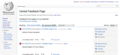 'Feedback from pages on my watchlist'.


Note that we want to add the user name after the sub-title of that watchlist version: 'Feedback from my watched pages (for <user name>)'
This link toggles back and forth between 'View feedback from my watchlist' and 'View feedback from all pages' -- with the opposite label used for the large headline above it.
The Central feedback page will now include a new text link right below its headline, like so:
- Headline: '151453 feedback posts from all pages'
- Link:
- 'View feedback from my watched pages'
Links to Watchlist feedback[edit]
This page can be accessed in different ways:
1. On the watchlist page
Click on this text link at the top of the 'Watchlist' page
'View feedback from my watched pages >'
A tooltip over the text link will say: 'View reader feedback from pages on my watchlist.'
This watchlist link would only be shown if there is feedback on pages from your watchlist (assuming this request is relatively easy to implement).
2. On the central feedback page
As described above, the central feedback page will now include a link showing the watchlist feedback list ('View feedback from my watched pages'). See preliminary mockups with alternative wordings:
-
 'View feedback from my watchlist' version
 -
 'View feedback from pages on my watchlist' version




This watchlist link would only be shown if there is feedback on pages from your watchlist (assuming this request is relatively easy to implement).
With a direct URL
Any logged-in user can view their own watchlist feedback list at this URL: http://en.wikipedia.org/wiki/Special:ArticleFeedbackv5/watchlist
Hide my post[edit]
This feature enables logged-in users to hide posts they created but they want to remove from public view.
Rationale[edit]
Some users will make mistakes that they want to take back -- or they may realize that a similar or better feedback post exists. In such cases, it is both expected and legitimate for users to remove their own feedback.
Tools[edit]
Depending on your user rights, this tool will be shown in one or two locations:
- Readers
A 'Hide my post' text link will be shown in the zone of user actions for logged-in readers, as shown in the mockup.

This text link would appear after 'Flag this post', as the last item in the bottom line for each post.
- Editors and up
Editors, monitors and oversighters will see the same 'Hide this post' label that is already included in the right sidebar (ideally changed to 'Hide my post' if this is their feedback). For editors, this link will only appear for feedback they have posted, but not for other posts -- with 'Mark as resolved' above it, 'View activity' below it, and two divider bars between them. For monitors and up, it will appear for all posts as it does already.
Functions[edit]
Whenever a post is hidden by its author, this feature will display a gray mask over it, add it to the 'hidden' category, and decrease the relevance score by 50 points. This means that this post will no longer be shown to other users, except for monitors and the post author. All these users will see will be the gray mask, with this label shown over it:
'This post #183,725 was hidden by <author name> less than 1 minute ago. View contents'
Post authors and monitors will have the option to click on the gray mask or its 'View contents' link to see the comments. They will also be able to unhide the post, using the same toggle function that already exists in the current tools.
Feedback link on articles[edit]
This feature enables users to access the feedback page from article pages.
Rationale[edit]
This type of feature has been requested by a number of community editors. They are looking for a quick way to access the feedback page from the article page, without having to go through the circuitous route of first clicking on the talk page, finding the link to the feedback page, then clicking on it to see feedback about the article. Our team would prefer a prominent placement like a 'Feedback' tab, but we will need significant community support to implement this feature. For now, we need a way to make the feedback page discoverable on the article pages, even if it's very discrete.
Link[edit]
The easiest way to accomplish this with limited resources is to add a link in the Toolbox on the left sidebar. While this is a very low traffic area, it will give us a first touchpoint that people in the know can use on the article page, until we get buy-in for more prominent placement.
This link will be shown at all times to all readers and editors, if possible:
- View feedback
This would be shown as the last item in the toolbox, right below 'Improve this page'. That next-to-llast link will be renamed to 'Add your feedback' (instead of 'Improve this page', which is unclear); this link lets you post feedback, scrolling down to the bottom of the article and highlighting the feedback form.
Functions[edit]
Clicking on 'View feedback' will take you to the feedback page.
Feedback on help pages[edit]
This feature enables users to post and view feedback on help pages.
Rationale[edit]
This feature has been requested by Siko Bouterse and Peter Coombe for improving help pages on the English Wikipedia, as well as by Benoit Evellin and Sylvain Boissel for the French Encyclopedia. They are looking to use Article Feedback in its current form, but on help pages, rather than article pages. Our team would like to provide that service if it will be used by our colleagues, but we have very limited time left to build that feature, before we start an intensive scaleability phase that will take up most of our engineering resources on this project in August-September 2012.
Functions[edit]
This feature will support these functions, as originally requested by Siko and Peter:
- Enable the current feedback form on the 'Help namespace' - in addition to the 'Article namespace'
- Enable the current feedback form on the 'Wikipedia: namespace' - but only that page belongs to the 'Article feedback' category
- Enable the feedback page for each help page
- Enable links to the feedback page on both the talk page and the article page
This would be done by clicking on 'View reader feedback' on the talk page, near the top title -- or on 'View feedback' in the Toolbox on the left sidebar of the article page.
- (optional) Remove posts about help pages from the Central Feedback page, so that readers are not confused to see article and help feedback in the same list.
This recommendation was made by Howie Fung, but would require more work than we currently have budgeted, so it may need to be postponed.
Split up "featured" and "resolved"[edit]
This feature enables editors to mark posts as resolved without requiring them to feature it first.
Rationale[edit]
This feature has been requested by a number of community editors. It makes sense to have these as separate concepts. By doing so, comments that are requesting something already available in the article can be marked as resolved without the need to highlight them as featured (which makes no sense).
Tools[edit]
Show both of these tools at all times to editors (as well as to monitors and oversighters):
- Feature this post
- Mark as resolved
Functions[edit]
We will remove the code that only showed 'Mark as resolved' if a post had been featured.
When a user clicks on 'Mark as resolved', the relevance score will be increased by 5 points (instead of being decreased by 45 points, which was used to offset the 50 point feature increase when these tools were bound to each other). This is intended to keep the post towards the bottom of the Most Relevant list, to show users that some of the posts are being used by editors to improve the article, as an implied confirmation that their feedback matters.
Clear all flags[edit]
This feature will enable editors and monitors to clear all flags for posts which they believe have been flagged in error. Flags will be automatically cleared when monitors perform an action that implies the post is not abusive. When unhiding a post that was hidden due to a high number of flags or featuring a post, the flag count will be cleared.
Rationale[edit]
This feature aims to address concerns that our current flagging system can be easily gamed by trolls, who could now gang up and flag feedback posts so as to unfairly cause them to be hidden, with no recourse available to monitors. Similarly, our imperfect abuse filter system could at times flag posts in error, causing them to be unfairly removed from the Most Relevant list. Hence the need for a feature that can let monitors clear these flags.
Tools[edit]
To clear all flags, monitors can use either of these tools:
- Feature this post
- Unhide this post
Functions[edit]
Whenever a post is featured or unhidden, this feature will simply cancel out the negative scores for all flags, so the relevance score will be restored to a higher level. This means that these posts can now be seen more prominently -- and appear on the 'Most relevant' list shown to readers by default.

To inform the user that flags have been cleared, the flag label will be changed to "Flags cleared" when the post is featured or unhidden, as shown in this preliminary mockup.
Logs[edit]
The cleared flags will remain in the activity logs, so we can track who and/or how they were added in the first place. But a new event will be added to the activity logs (both on the feedback page and the central log), saying something like: '<date> <user name> cleared all flags for [feedback post <post ID> (on <article name>' .
Protect articles to limit feedback[edit]
This feature enables administrators to protect articles to limit feedback on controversial pages.
Rationale[edit]
The purpose of this feature is to prevent certain user groups from leaving feedback on protected or semi-protected articles (e.g.: Justin Bieber, Barack Obama), where the nature of the topic encourages people to voice their opinions on the subject, rather than make specific suggestions for improving the article.
Functions[edit]
We plan to expand the "Protect page" function to enable administrators to disable article feedback for protected or semi-protected articles.
We plan to use the same user interface as for other sections of the Protect page (edit, move, and now feedback). This feedback section of the Protect page will include this menu of options:
"Article feedback:
- Enable for all users
- Enable for logged-in users only
- Enable for auto confirmed users only
- Enable for administrators only
Expires: [time range from to infinite, with infinite as default]
Other time: [blank text field]
[ Confirm ] "
Once the new settings are saved with the Confirm button, these article feedback items would only be visible to the authorized user groups:
- the feedback form
- the feedback page
- the article links to add or view feedback
- the talk page link to view reader feedback
To discourage excessive use of this feature, it will not be possible to set the protection level of AFT higher than the protection level of editing a page. If an administrator attempt to set the protection level higher than for edits, this error message will appear: "Article feedback protection level can not be higher than Edit protection level". Note that this feature doesn't support disabling AFT completely, because article feedback is intended as a persistent way to give users a voice -- and that feedback doesn't impact the articles themselves, which makes it a much lower risk for Wikipedia.
Logs[edit]
After an administrator protects feedback on an article, the Protection Log and My Contributions should show what feedback settings were changed, by adding this information in these logs (as is already done for edit or move protection):
[feedback=autoconfirmed] (indefinite)
Ideally, we would only show these feedback actions when the feedback settings were changed, not when only the edit or move settings were changed.
Future improvements[edit]
In later phases, this feature could be expanded to enable administrators to perform more functions, such as:
- enable selective display of the feedback page for a protected article, as well as to control its default filter to meet their needs (e.g. 'Comments only', 'Helpful', 'Featured', 'Relevant', etc).
- only display helpful feedback for protected articles, to prevent visitors from being exposed to inappropriate feedback. This would simply be done by changing the default filter to 'helpful' (or other 'relevant' or 'recommended' filter, see below), as opposed to showing all feedback.
- provide the option to display a 'Captcha' on protected articles, to reduce the quantity of inappropriate feedback.
Throttle requests for oversight[edit]
Since oversighters are getting too many requests that are not relevant to them, this feature shows a checklist of oversightable offenses before you can request oversight. This is expected to cut down on the number of requests, make them more relevant and reduce the overall workload for oversighters.
To address this issue, we propose to show a checklist of oversightable offenses in the oversight request flyout, with a prompt asking you to check that list before you request oversight. This would presumably cut down on the number of requests, make them more relevant and reduce the overall workload for oversighters. Note at this point, only admins, reviewers and rollbackers can request oversight, so this is a limited pool of a few thousand users (called 'monitors').
Based on recommendations from Philippe Beaudette and Risker, here is our proposed copy for this checklist:
"Request Oversight
Before requesting oversight, please check that this post includes one of these issues:
- phone number
- email addresses
- pornographic links
- defamatory/libelous comments about a person
- <other criteria for oversight>
Add a note to explain why you are requesting oversight:
[ text box ]
(Request oversight button)"
Also, please add this link under <other criteria for oversight>: http://en.wikipedia.org/wiki/Wikipedia:Oversight#Policy
Here is the Bugzilla ticket for this feature: https://bugzilla.wikimedia.org/show_bug.cgi?id=40584
Default relevance filter for editors[edit]
This feature changes the default for editors to first filter the feedback page by relevance, showing the 'Most relevant' view, in the same way as we now do for readers. This is intended to give editors a better first impression than they get now, when the default is set to see all comments. Right now, some editors get overwhelmed by the number of irrelevant posts, and this would help them focus on the most relevant posts first. Once they see the value of the tool, they can easily click on 'All comments' to change their default to that full view if they like, using the 'sticky filters' feature which shows you whatever filter you selected last on any new feedback page we visit (we are now considering limiting the 'sticky filter' feature to only 'All comments', rather than 'All Comments').
Features under consideration[edit]

These features are being considered for a full release of Article Feedback in 2013 and most of them have been developed already. They generally aim to reduce the editor workload through a variety of ways (e.g.: by providing simpler moderation tools, better filters or surfacing useful feedback). We are now testing these features on our prototype site, and will then release them on production sites such as the French and German Wikipedias in mid to late March 2013.
Feedback link on article pages[edit]

This proposed feature enables editors to find out if there is new feedback about their articles and quickly access the feedback page from the article page.
Rationale[edit]
Currently, very few editors go to check the feedback page, partly because they don't know that exists and partly because we don't engage them to view suggestions from our readers: the feedback links in the toolbox and talk page are now so small and out-of-the-way that nobody sees them. As a result, the feedback doesn't get used to improve the quality of articles, which is an important goal of this project -- beyond engaging readers to participate.
To address this issue and make feedback more visible to editors, this feature would display on article pages a prominent link to the feedback page, with an indicator of how many useful suggestions are provided on that page.
Design approach[edit]
Considering the goal of "increasing visibility for editors", we think that the most effective way of providing access to user feedback is to:
- Provide the information when editors need it in the editing process (e.g. a link at the top of the article page).
- Anticipate the usefulness of the feedback (don't make editors leave the editing process without a guarantee that there is something that will help them to their goal).
We considered adding a 'Feedback' tab next to the 'Talk' or 'View history' tabs, but concluded that this approach would introduce confusion for the users (e.g.: talk and feedback represent similar concepts, but no clue is given about which kind of content to expect, which makes it hard for the user to make a choice.)

Link[edit]
We propose adding a link if there are relevant suggestions that could be helpful to editors: "4 reader comments", as shown in the mockup to the right.
This link would:
- Appear below the article title, after the words 'From Wikipedia, the free encyclopedia'.
- Include an icon to make the link visually more prominent (e.g. 'talk' icon).
- Use the word "reader comments" to make it more explicit what kind of content is provided.
- Display the number of 'featured' posts, to give editors an idea of how much we are going to help them.
- Only show this link to auto-confirmed editors, and only if there are featured feedback posts
Clicking on the link would take you to the feedback page, showing the 'Featured' filter.
The mockup to the right illustrates the proposed placement, size and style of this link.
Hiding the link[edit]
If editors do not wish to see this link, they will have the option to turn off Article feedback in their user preferences, so that the feedback page link would be hidden, along with not only would the feedback form. Clicking that checkbox again would turn Article feedback back on and display both the link and the feedback form. To that end, we may want to use the same Feedback Button 'X' Close box we had used for the feedback link option A when we tested it last spring, as described at the end of this section.

Feedback page changes[edit]
For better continuity and consistency with the new feedback link, we propose to make some changes to the feedback page itself, as shown in the mockup on the right.
For example, we would show this header on the feedback page:
4 featured comments (of 150)        65% found it helpful

Showing:   Featured (4)       Unreviewed (16)        More filters
Notes:
- We would add the 'total' number of posts in parenthesis -- '(of 150)' -- making it less prominent than the number of featured comments.
- We would use 'Featured' instead of 'Most relevant', because it's a simpler term that is easier to understand. (That term is now free, since we are no longer using 'Feature this post'.)
- This default filter would include posts marked as 'Usable' or 'Helpful' -- and excludes posts marked as 'unhelpful', 'flagged', 'done', 'unusable' or 'inappropriate'.
- We would use 'Unreviewed' instead of 'Unresolved', because it reduces the pressure on editors to resolve every comment. Alternative terms we considered include 'Unmarked', 'Unmoderated' or 'Unmonitored', but they all seem harder to understand than 'Unreviewed'. (Note that we already decided to replace 'All comments' with this more practical queue of unmoderated comments.)
Simpler moderation tools[edit]


This feature would streamline the moderation tools for Article Feedback, to help editors moderate feedback more effectively and reduce their workload.
Purpose[edit]
The purpose of these improved moderation tools is to make it easier and faster for editors to moderate feedback posts, with these specific goals:
- enable editors to quickly moderate posts (e.g.: mark as usable, done, unusable or inappropriate)
- make moderation actions more effective
- make the user interface more intuitive
Design[edit]
We propose to simplify the interaction model by grouping moderation actions in a way that map better with user intents (see mockup thumbnails to the right):
- Present clear top level actions: promote, resolve, demote or hide.
- A moderation action would provide 4 options in a scale:
- 'Useful' (good)
- 'Resolved' (good but already fixed)
- 'No action needed' (neutral)
- 'Inappropriate' (bad).
- This maps better to the way users evaluate posts, and actions are presented directly to them (not hidden in sub menus since workflow should be fast in this context).
Here is how these actions map against the current moderation tools:
- 'Useful' replaces 'Feature this post'. This label applies to more posts and is easier to determine.
- 'Resolved' replaces 'Mark as resolved'. This label is shorter and easier to understand.
- 'No action needed' is a new tool that didn't exist before, and was requested by many community members.
- 'Inappropriate' replaces the previous 'Hide this post' tool. See more clarifications below about its use.
Tooltips[edit]
Short tooltips will be shown when editors hover over the moderation tools, to make them easier to understand:
- Useful: "This can help improve the article".
- Resolved:"This was used or considered for the article".
- No action needed: "Unclear, irrelevant, praise, duplicate ..."
- Inappropriate: "Nonsense, spam, offensive, private data ...".
Primary Actions[edit]
When you click on any of these moderation tools, different actions would take place immediately, depending on which option you select:
- The 'Useful' tool would add the post to the 'Featured' and 'Usable' queues and add +50 points to its relevance score. It also removes it from the 'Unreviewed' queue.
- The 'Resolved' tool would add the post to the 'Done' queue and remove it from the 'Unreviewed' queue.
- The 'No action needed' tool would add the post to the 'No action needed' queue and remove it from the 'Unreviewed' queue.
- The 'Inappropriate' tool would add the post to the 'Inappropriate' queue and remove it from the 'Unreviewed' queue. (We are discussing making this tool available to auto-confirmed editors, to spread out the moderation workload across a wider group of users, given the high volume of inappropriate posts. This would only remove the posts from the 'Unreviewed' queue and show a translucent gray mask over them, but not hide them completely -- leaving that task to monitors, as we do today)
Secondary Actions[edit]
Once you click on one of the moderation tools, they would be replaced by an action panel that would provide a confirmation status and follow-up actions, as so:
Marked as
inappropriate
by TheHelpfulOne
<Read note>
* Undo
* Request oversight
If the editor who marked the post added a note, we would show a <Read note> link (which could simply open the 'View activity' panel for now). If the editor did not leave a note, show 'No reason given - View activity). If you last moderated this post and you did not leave a note, an <Add note> text link would invite you to add a note to your review, which would open up an 'Add note' flyout.
We would show 'Undo' for all mark actions ('Useful', 'Resolved', 'No action needed', 'Inappropriate').
If the post is marked as 'Inappropriate' and the user is a monitor (e.g.: administrator), we would show 'Request oversight' below 'Undo'.
One-click moderation actions[edit]
To speed up the moderation process, we propose to no longer display a flyout for adding a note each time you click on one of the moderation tools (e.g. 'Done'). Instead, the moderation action would take place as soon as you click on the link, with the option to add a note afterwards, if you like -- as shown in the mockup to the right.
Actions should have an immediate effect. The "Add a note" step just adds a barrier in the process. We propose to remove it from the moderation tools on the feedback page and postpone the invitation to add a note until after they have clicked on a moderation tool.
However, we would still display a flyout for any of the oversight-related tools, which require more documentation, given their sensitive nature.
Oversight[edit]
We would continue to offer the same oversight functions we provide now, but they would be presented separately, since they are only available to monitors and oversighters, and require two line items that would otherwise clutter the 'hide this post' section. With that in mind, we propose to show the 'Request Oversight' option only after a monitor hides a post as inappropriate, to reduce clutter and confusion about which option to choose. Oversighters would see the same tools we offer now at all times.
Note that we will need to update the filters to reflect the new naming conventions, as described in the separate feature requirement in this section. Also note that there have been extensive community discussions on this gneeral topic on the AFT5 talk page (particularly this section).
Moderation labels[edit]
We discussed three possible options for the final wording of the AFT moderation tools, as shown in the mockup to the right.
Here are pros and cons for each option:
- Option A - Usable/Unusable
Pro: Clear labels for promoting or demoting a comment, and the + / - icons are easy to understand.
Con: Requires editors to give a negative label to constructive but not actionable suggestions.
- Option B - Usable/Not applicable
Pro: Reduces the negative connotation when demoting constructive comments.
Con: Confusing. None of the proposed labels map clearly with this workflow, and the dotted circle icon is a bit abstract.
(e.g. not applicable, no action item, no action needed -- and not actionable can't be used for legal reasons)
- Option C - Useful/Archived
Pro: Labels are simple and generally well understood, with no negative connotation for archived comments.
Con: 'Archived' is a concept that is not usually thought of as the opposite of 'useful', though it could work in this context.
After analyzing these and other options through a usability with sample editors, our team favors the new specification above ('Useful', 'Resolved', 'No action needed', 'Inappropriate'), with these two remedies to the issue above:
- Show a tooltip with examples of which which comments would fit under the Unusable category (e.g.: unclear, redundant, general praise).
- Do not show negative labels to readers (e.g. 'Unusable', 'Inappropriate'), so they do not feel bad.
Inappropriate tool access[edit]
We discussed three alternatives for how can access inappropriate and how, as depicted in this mockup: http://dl.dropbox.com/u/30377416/prototypes/feedback-tool/article-feedback/simplifications/editor-monitor-interaction.png

- A: Allow editors to mark as inappropriate, in the same way that monitors do.
- B: Allow editors to mark posts as inappropriate, and remove them from the main queues, but don't 'hide' them. Monitors can evaluate these suggestions and hide them if needed. The confirming step is optional since posts will fall to the end of the list and those without any support will get auto-archived.
- C: Inappropriate is linked with the flag concept for editors so that marking a post as inappropriate is equivalent to flagging it as abuse. This creates an inconsistency with the rest of moderation actions (e.g., add a label to the post, allow to add a note, etc.).
At this stage, our team favors Option A, for these reasons:
- It reduces the monitor workload by extending this feature to a much larger group of editors
(about 20% of comments fall in the 'inappropriate' category, which unnecessarily burdens administrators).
- It is by far the simplest solution, from a user interface standpoint (options B and C are way too complicated).
- It doesn't cause serious harm to users, even in the case of abuse, because inappropriate actions can be easily undone.
- Comments are much less critical content types than edits, and don't require the same level of supervision.
View Activity[edit]
To further simplify the moderation tools, we propose to remove the 'View activity' tool in the default view of the feedback page. Since this 'View activity' option is already available in the 'details' permalink page, it is not essential to show it here, as it distracts editors from the main moderation process. Though we may want to link to this feature after a post has been moderated (e.g.: 'View note' option).
Feedback page filters[edit]
The focus of this feature upgrade is to reduce the editor workload by making the feedback page filters easier to use -- as well as prevent readers from seeing irrelevant feedback.
Purpose[edit]
The feedback page filters support these main user motivations:
- View different types of reader feedback
- Improve articles based on feedback
- Moderate comments productively
Users[edit]
The feedback page serves four main user groups, each with a different motivation:
- Reader: see what others are saying
- Casual editor: improve articles based on feedback
- Active editor: promote best suggestions
- Monitor: remove irrelevant comments
Our feedback page filters should be able to support each of these user goals.
Solutions[edit]
We propose to support users with these main filters:
- Featured (now called 'Most relevant') - for both readers and editors
- Unreviewed (would replace of 'All comments') - mostly for editors, but readers can still see it
- More filters (drop-down menu with different filters) - for editors only
By default, the 'Featured' filter would be shown first when you visit the feedback page, and would only feature comments marked as 'Usable' and 'Helpful' (the same functionality as 'Most relevant' today, only a label change).
The second main filter would be a new 'Unreviewed' filter (see below), which would show unmoderated comments (and would replace the current 'All comments' filter).
We think it makes more sense to show these two main filters, which better support the main actions, and can be mapped in the following way:
- Featured: Readers that want to see comments and vote on them. Editors that want to see what are most popular suggestions.
- Unreviewed: Editors that want to classify new comments from readers. The previous 'All comments' filter seems too general compared to "unreviewed".
Featured[edit]
This filter is shown to all users the first time they visit a feedback page. It only shows comments that have been promoted by moderators:
- Useful
- Helpful
This filter is sorted by relevance, with the featured posts shown first, then the most helpful. The sort order is based on each post's 'relevance' score.
If no items are marked as useful or helpful, we will show the 'Unreviewed' filter instead of an empty list. An empty list gives the wrong idea that there is no feedback. In this case, 'Unreviewed' comments are the next best quality available for that scenario, but they should be sorted by relevance, not date. In this particular case, we would like to remove from that special version of the 'Unreviewed' filter comments whose helpfulness or relevance scores are negative (e.g. posts that have more unhelpful than helpful marks, or that have been flagged as abuse so as to cause a negative score).
Unreviewed[edit]
This filter is shown to editors or readers who only want to see comments that have not already been moderated. This 'Unreviewed' filter would be shown as a text link next to 'Featured' on the feedback page toolbar, instead of 'All Comments'. This filter is sorted by date, with the most recent post shown first. It excludes any item that has been marked as done, unusable or inappropriate. This feature has been requested by a lot of users, it seems pretty easy to implement and could be quite valuable.
More filters[edit]
This dropdown menu provides other filters for advanced users who need more control for moderating comments. We propose to add a few new filters to the current list (e.g.: 'No action needed'), as well as remove or consolidate any filters that we think are no longer needed.
Readers have no 'More filters'
Readers and editors with less than 10 edits cannot see the 'More filters' dropdown menu.
Editor Filters
Here's an example of how the 'More filters' drop-down menu might appear to editors, with new filters:
More filters
- - - - - - - - - - -
Helpful
Unhelpful
Flagged
- - - - - - - - - - -
Useful
Resolved
No action needed
Inappropriate
- - - - - - - - - - -
Archived
- - - - - - - - - - -
All comments
Monitor / Oversighter Filters
Monitors and Oversighters now see more filters in that dropdown menu, as described in our feature requirements, and summarized below.
Monitors extra filters:
Same as editors, plus:
- - - - - - - - - - -
Hidden
- - - - - - - - - - -
All posts
Oversighter extra filters:
Same as editors, plus
- - - - - - - - - - -
Hidden
Oversight requested
Oversight declined
Oversighted
- - - - - - - - - - -
All posts
Note that we propose replacing the 'All comments' menu item with 'All posts' for monitors and oversighters, so they can have full access to posts, including those without comments.
Auto-archive comments[edit]
As an automated moderation tool, we propose to build a new 'Auto-archive' feature to remove from the 'Unreviewed' filter comments that are not moderated after a certain period of time.
Purpose[edit]
The intent of this automated feature is to reduce the moderation workload by archiving comments that have not been reviewed after a while.
Here are the primary use cases for this feature:
- as an editor, I want old comments to be automatically removed from the 'Unreviewed' list, so I have fewer comments to moderate
- as a monitor, I want to be able to view auto-archived comments through a special filter, to see if any of them were useful
We hope that this feature can encourage editors to think of feedback as an ephemeral stream that's a bit like a "twitter feed" (no obligation to check it all), rather than viewing comments with an "unread mail inbox" paradigm (which invites you to check every single post, as currently perceived). Our observation is that comments on the Internet are generally perceived as having a limited useful life, as opposed to edits on articles that are viewed as having a more lasting value.
Label[edit]
Archived posts would be indicated by a unique 'Archived' label on the feedback page, so they can be identified easily. We would also give them a unique label in the activity logs ('<feedback post> was archived after x days'). In the central article feedback logs, this message would be displayed to report these archiving actions (with a comment in parenthesis):
"Article Feedback archived this post on 22 March 2013 at 17:13 UTC
(Unreviewed posts were archived after 2 days on this page.)"
Filter[edit]
Feedback that has been archived would be viewable by all editors, using an 'Archived' filter (in the 'More filters' drop-down menu), to make it easy for editors to check all these archived comments together, if necessary.
Undo[edit]
Feedback that has been archived would have an 'Undo' button enabling any editor to unmark archived posts (just like all other moderation actions). This will make it easy for editors to review archived posts if they have extra time, in case they want to "revive" useful comments that were missed when nobody was around to review them.
Timing[edit]
The period of time before a post is archived would vary with the page's overall volume of unreviewed comments. For example, on the controversial Barack Obama page which can quickly collect up to a hundred unreviewed comments, these comments would be automatically archived after a couple days; but for a new page with just a few comments, we would only archive posts once a year.
We propose to base the frequency at which posts are archived on the number of unreviewed comments, as suggested below:
- one year (for articles with very few unreviewed comments, e.g.: less than 10)
- one month (e.g.: 10-20 unreviewed comments)
- one week (e.g.: 20-30 unreviewed comments)
- 3 days (e.g.: 30-40 unreviewed comments)
- 2 days (e.g.: more than 40 unreviewed comments)
For testing purposes on prototype, we are currently using these temporary settings:
- 0 => '+600 minutes', // < 9
- 10 => '+300 minutes', // 10-19
- 20 => '+60 minutes', // 20-29
- 30 => '+30 minutes', // 30-39
- 40 => '+20 minutes', // > 40
(we will replace these prototype settings in the final version, once testing is complete)
When tweaking this feature, the following should be taken into account:
- We don't want low-traffic articles running out of comments, so the "one-year" frequency should be considered
- Posts should remain visible no less than a day. Auto-archiving any sooner than that won't meet user expectations, even for high-traffic articles.
- We want to archive posts that are scanned and ignored by reviewers, so the number of reviewers could also be factored, once the tool gets an stable use.
Evaluation[edit]
For practical reasons, this archiving feature would evaluate all posts as soon as the feedback is added: if at the point the feedback is added, there are a lot of unreviewed comments, it would disappear quickly. Even if 2 hours later someone goes on a cleaning spree and flags all unreviewed feedback but that one, it will still disappear soon. (can't reliably be done any other way). From a technical standpoint, a script would have to run periodically (e.g. daily) to process all posts that ought to be archived and actually mark them as such. To that end, we would use a 'cron' job on each site, which would also be responsible for cleaning us any caches.
Future releases[edit]
In future releases, administrators could have the option to specify when to auto-archive posts on a per-article basis, using the 'Protect articles to limit feedback' feature. For example, this extra line could be added to that feature: 'Auto-archive feedback after <2> days'). These custom adjustments would be the exception, not the norm. We would initially run a batch script to set this parameter based on volume, but admins would then have the option to tweak it.
Separate reader tools[edit]

This proposed feature change would only show the reader moderation tools (mark as helpful/unhelpful, flag as abuse) to anonymous users (and new editors) below each feedback post, as shown here:
Is this feedback helpful? [thumbs up] Yes [thumbs down] No [icon] Flag as abuse
These reader moderation tools would no longer be shown to auto-confirmed editors and more advanced users, as illustrated in the mockup to the right.
Purpose[edit]
The purpose of this proposed feature is to keep encouraging readers to do some simple moderation with separate reader tools -- and to remove these reader tools for editors, to simplify their choices, so they only have to focus on their editor moderation tools on the right. This is expected reduce confusion as to which part of the screen to look at and which tool to click on.
Reader votes[edit]
In place of these reader moderation tools, editors would see the results of reader moderations, as proposed below:
[icon] 65% of readers found this helpful 1 abuse flag
- When you roll over the helpful summary, show the detailed number of yes or no votes, as so:
[icon] 66% of readers found this helpful (4 yes / 2 no) 1 abuse flag
- Show a grayed out 'thumbs up' or 'down' icon before that summary, so you can tell at a glance if it's found helpful or not, without having to read the text.
If this change proves to be too confusing to editors, we may consider instead making these reader tools available to editors after all, but only when they roll over the selected feedback post (a bit like Twitter does for retweeting or favoriting a tweet). That approach may be a reasonable way to unclutter the display without losing key functionality.
More abuse filters[edit]
This feature would implement new abuse filters to discourage more questionable comments. For a full description of current abuse filters that were previously developed, please refer to this section. Here are the new filters we have considered or developed to support a wider release.
Repeating characters[edit]
Disallow posts where the same character is 5 times or more in a row. See also: this edit filter #135, which could be adapted for this feedback filter.
No punctuation or spaces[edit]
Disallow comments that have no commas, periods, colons, spaces, question marks or exclamation marks -- often a telltale sign of irrelevant contributions, according to project advisors. See also: this filter #231 for ideas on how to filter out posts with no spaces.
Shouting[edit]
Give a warning when most of the comment is ALL CAPS (or 90% of chars.), which is usually a telltale sign of questionable feedback. This filter was implemented in April 2012 as filter #458, but disabled by other filter editors -- and repurposed for preventing very short posts by in August. We recommend starting a new feedback filter for this function, but implement it as a Warning (not Disallow) -- and only for posts that are at least 90% all-caps.
More bad words[edit]
We should be able to filter out more offensive words than the small list we now disallow. We will do more research in coming days and email a larger list to our developer, rather than posting these swear words here.
Short posts[edit]
We should also make sure that we are now able to reliably and consistently filter out short posts of 10 characters or less, as we attempted to do earlier. If this cannot be done effectively through the abuse filter, let's implement this feature in the Article Feedback extension itself, which should be pretty easy. Simply don't make the blue 'Post your feedback' button available until you have at least 10 characters, and add a prompt next to it saying 'Please provide more detail' (in keeping with our goals of geting specific improvements).
As a result, we hope to filter more irrelevant posts than we do now (about 10% of total feedback is now filtered through this tool, and it may be possible to increase that number with a few more reliable filters).
See also other proposed filters in the 'Under consideration' section of this abuse feedback filter spreadsheet.
Satisfaction Rating[edit]
The feedback page shows a 'satisfaction rating' with the percentage of people who 'found what they were looking for' in its related article. The current version of this rating is only based on the last 30 feedback posts, including posts that were resolved or hidden. This doesn't seem right.
We propose to change the formula for that 'satisfaction rating', to base it on all posts that have NOT been marked as 'resolved', 'inappropriate', 'hidden' or 'oversighted'. So this count would include unreviewed posts, as well as posts that were marked as 'useful' or 'no action needed'. We also propose to remove the current 30-post limit, because it is confusing, arbitrary and inconsistent with the posts that are being shown to users.
Prominent 'Central Page' link[edit]
Show the 'Central Page' link more prominently on the feedback page, so that more editors realize that it exists, and possibly help moderate that central feedback page. This could be accomplished by increasing the font size -- and/or adjusting its style.
Post without comment[edit]

Another way to discourage inappropriate feedback on the front end would be to add a text link next to 'Post your feedback' below the comments box: 'Post without comment.' This feature, illustrated in the mockup to the right, could prevent some users from typing gibberish just to post their feedback.
Discuss on talk page[edit]
We would like to make it easy to promote a feedback post to the article talk page, so that editors can discuss it in the same place where they already have conversations about article improvements.
We are now considering implementing this feature in the first release, since it seems easy to do from a development standpoint and is a very frequent request we've heard over and over again from different communities (English, French and German Wikipedias). This would be the first step towards a talk page integration that could be continued in future releases.
To that end, we propose to add a 'Discuss on talk page' link in the menu editors see after they moderate feedback with the new tools, as shown in this first mockup. To focus on the specific need for this feature, we propose to only show this 'Discuss on talk page' link for posts that are marked as 'useful' -- and we would only show this link after you've moderated a post, since we don't want posts to be massively replicated in talk pages.

Clicking on this link would have the same effect as if you clicked on 'New section' on the article talk page, except that it would pre-fill the subject/headline field, as well as pre-fill the body of this new talk page section, as proposed below:
Reader feedback: 'It would be nice if there was a map ...'
FonsScientiae posted this comment on 17 July 2012 (view all feedback):

 <blockquote>
 "It would be nice if there was a map about the distribution and habitat of the bird.
 And an audio sample of the bird's song would be excellent!"
 </blockquote>

Any thoughts?
~ ~ ~ ~
The section title would include the prefix 'Reader feedback:', followed by the first 50? characters of the comment. For feedback shorter than that threshold, the entire comment could be placed in the section title (we are discussing whether or not to remove it from the body as well). You can see mockups that illustrate the workflow for both short posts and long posts.


The editor could add their own comments to this pre-filled post, then click 'Save page' to add it as a new section on the article talk page. After a post has been added to the talk page, the label for that post would change to 'See talk page discussion', with a link to that section on the talk page, to invite users to participate in this existing discussion. (This would require us to store that action in the database, which may increase complexity.)
Contact this user: If feasible, we propose a different link for posts that have been marked as 'resolved', 'no action needed' or 'inappropriate': 'Contact this user'. This would link to the user talk page of the person who posted the feedback, instead of the article talk page. The rationale for this 'Contact this user' proposal is that it would encourage constructive interactions between new and experienced users, which is a frequent community request. This user talk page link would also address the fact that a discussion on an article talk page may only be appropriate for 'useful' posts, but not for other actions.
In coming days, we will estimate how much work is required to implement each of the above proposals: 1) 'Discuss on talk page' (link to the article talk page) and 2) 'Contact this user' (link to the user talk page). If both ideas would require more development time than we have, we could start with the 'Discuss on talk page' for our first implementation, then implement 'Contact this user' as a second step, as time allows. If there is no time to do the second idea, perhaps we could simply add '(talk)' after the user name in the feedback post itself, which would make it easier for people to contact that user about their post.
Hide this post[edit]
This feature makes it possible for monitors to hide inappropriate feedback which they believe should be hidden for most users.
This 'Hide this post' text link would appear in the second moderation panel, but would only be shown for posts which have been marked as inappropriate, and would only be visible to monitors (administrators, rollbackers or reviewers) and oversighters. Clicking on 'Hide this post' would display a gray mask over that post, which would make it impossible for anyone but a monitor or oversighter to see the contents of that post. Monitors or oversighters would be able to click on that gray mask to reveal its contents -- as well as an 'Un-hide this post' text link, which would revert the previous action and reveal the post again.
This would provide administrators with the equivalent of a Revision deletion-tool, to remove from public view feedback that should be hidden for most users but that is not serious enough to be oversighted, as requested by members of the German and English communities.
The 'Mark as inappropriate' tool would remain available to editors as a preventive moderation tool, but no gray mask would be shown over posts marked as 'inappropriate', unless a monitor explicitly chooses to hide them. The rationale for this is that editors are more likely than monitors to make a mistake, which should be easy to undo by other editors. But they would be able to quickly move inappropriate content into an 'inappropriate' filter, making it easy for monitors to find posts that may need to be hidden, all in one place.
A separate 'hidden' filter would also be available to monitors and oversighters, in case they need to review hidden feedback. Monitors would continue to have access to the 'Request oversight' feature, and oversighters would continue to have access to the 'Oversight' or 'Decline oversight' features described above on this feature requirements page.
More features for future releases[edit]
These other feature ideas are also being considered for future releases. Priority will be given to features that significantly reduce the editor workload and/or the perception that feedback needs to be moderated.
Quick guide[edit]

This feature would show a few helpful tips on the feedback page, to guide users on how to moderate comments on this page, be they editors or readers. A 'Quick guide' link would be added at the top of the feedback page, and would display a flyout with no more than 6 bullet points (this flyout would appear automatically on your first visit to the feedback page). It would first inform users that this is primarily a new user engagement tool, that the feedback page is not actively promoted to the public and that they are not 'required' to moderate that page. It would then briefly explain which tools to use to moderate different types of feedback, then point them to this tutorial for more info. But the initial purpose of this feature is to make it clear that article feedback is mostly a way to give readers an on-ramp to contribute to Wikipedia and that moderation is completely optional, since the comments are not promoted to the public. The guide would be highly visual, using the tool icons to clarify what they are for, with as few words as possible. We would provide a different versions of the guide for readers, editors, monitors and oversighters. It could be inspired by these Response Guidelines which the community has prepared on its own.
Here is a preliminary mockup for a very brief guide that would be easily removable by the user (no longer appearing if user closes). The text included in the mockup is not intended to be final at all and more work will be required to reduce information to the essence, if we decide to follow this route.

Sign up to track your comment[edit]

This feature would invite enhance our signup call to action (see CTA4 section above) to invite more anonymous users to create an account after posting comments, to increase new registrations.
Rationale[edit]
Currently, 98% of comments are posted by anonymous users, who do not sign up and therefore cannot be contacted for follow up engagement programs. This proposed feature would invite anonymous users to sign up, so they can track their comments, as outlined below.
Design Approach[edit]
Given the objective of "increasing reader participation" and the need to enable follow-ups or notifications of anonymous users, we propose to invite these users to sign up to track their comments, as shown in the workflow to the right. After users answer the first question ("Did you find what you were looking for?"), we would invite them to post a comment as we do now, then ask them to register, so they can track their comments. A side benefit is that a successful registration would also list their comment more prominently on the feedback page (we would automatically place feedback from registered users in the 'Most relevant' filter, but comments from anons would stay in the 'All Comments' filter unless manually promoted by moderators).
This would have several benefits:
- it would continue to provide an easy way for readers to contribute.
- it would give users one more reason to sign up (to track their comments).
- it would make their comments more prominent after they sign up.
Other calls to sign up[edit]
These feature requirements are for discussion purposes only. We are still discussing the best wording for this revised call to action (CTA7). In coming weeks, we plan to experiment with different calls to action to invite more anonymous feedback contributors to create an account (ideally with an email address). This would support our editor engagement goals more effectively and include plans to follow up with registered users through notifications, hopefully in collaboration with WMF's E3 editor engagement experiments group. Up until now, the primary method for driving more user registrations has been CTA4, described in the 'Calls to action' section above. We have also looked into different ideas for a modified CTA7 in the proposal above.
Other features being considered for future releases[edit]
Hide moderation tools until rollover[edit]
To make the feedback page less overwhelming at first glance, we may want to consider hiding all moderation tools until the user rolls over a particular feedback post. This would include both the reader tools (Helpful, unhelpful, flag as abuse) and the editor tools (Feature, resolved, etc.).
Limit feedback on controversial pages[edit]
This feature would automatically remove the feedback tool from protected and semi-protected articles, as it appears that these pages get less useful feedback than low-traffic pages -- and they also require more moderation. This could be implemented as an application of our existing 'Protect articles to limit feedback' feature, which enables administrators to limit feedback on controversial pages, using an enhancement we made to the 'Protect' feature. We would simply run a batch script to limit feedback for anonymous users on protected and semi-protected pages, as is done now with their ability to edit. Administrators would have the option to re-enable feedback posting to all on a case-by-case basis, almost like an opt-in feature for controversial pages.
Bulk moderation[edit]
Explore the idea of tools that let you hide feedback in batches (e.g. clicking on checkboxes for all posts you think should be hidden, then clicking a 'Hide' button to make them all go away at once).
Keyboard shortcuts[edit]
This could help editors moderate faster, assuming we could override the universal keyboard shortcuts. But this is not a trivial task to design and develop. See this first mockup, which proposes a design approach for this feature.

Only editors can see 'All Comments'[edit]
Prevent readers from seeing the 'All Comments' filter, restricting it to editors only -- and labeling it as such ("Editors-only'). This may reassure editors that the public is not able to see the bad comments, and that there is no serious harm if not all comments are moderated. On the other hand, the net effect of this decision would be to prevent most readers from moderating feedback, when they now moderate over two-thirds of the comments. A possible compromise might be to still allow readers to access 'All comments', but to put a prominent warning: 'This section has not been moderated yet and may contain offensive or unusable comments.'
More weight for editor moderation actions[edit]
This feature would give higher weight to editor moderation actions, so they have more impact. For example, we could increase a post's relevance score to +2 when an editor marks a post as 'helpful' (versus just +1 now). Conversely, when an editor marks an item as 'unhelpful', we would reduce its relevance score to -2. This would give editors more control over the moderation actions, but would complicate the calculation of relevance from a technical standpoint.
Filter posts by user relevance score[edit]
This feature would automatically promote on the feedback page comments from users who consistently provide relevant feedback. Similarly, users who consistently promote irrelevant feedback This would be determined based on the average relevance score of that user's posts over time. Though likely to be controversial, this method could prove very effective in promoting helpful feedback and filtering out the noise on the feedback page.
Add your feedback[edit]
This feature would add a button on the feedback page to enable people to add their feedback on this article, if they haven't already. This button could show a form overlay on top of the feedback page -- or link to the feedback form at the bottom of the article page. See mockup.

Signup and claim[edit]
This feature would modify CTA4 to transfer prior activity into their new account when they sign up. This revised CTA4 would invite AFT users to register an account and link their user_id with the feedback they just posted. Currently, we have no way in AFT to engage with authors of useful feedback and notify them of actions community member perform on their feedback. We currently have 2K users who posted feedback that got featured by community members. There will be much more featured content to be found if we sent feedback moderators to less visited articles, but we won't be able to respond to their prior featured posts, even if they register through CTA4 as it now stands. This modified CTA relies on available functionality and would only require some minor changes to the schema of the AFT table and the UI of the feedback page. Legal has already informally reviewed the use of these tokens for this purpose.
Feedback API[edit]
This feature would enable developers to create bots or extensions that can moderate feedback automatically. For example, one such tool could post-process all feedback and flag or hide comments with swear words which were not caught by the abuse filter. This API already exists, but needs a throttling tool to prevent abuse, and may also need a protocol for who can access this feature for large batch processing tasks.
Automated Feedback Ranking[edit]
This feature proposes to reduce moderator workload and facilitate the discovery of good feedback that nobody is processing. This would be accomplished by automated ranking and pre-filtering tools that would assign a score to feedback posts based on heuristics analysis to be conducted by a separate extension. This score could then be used to:
- serve a smaller amount of feedback to be processed by moderators
- allow moderators to explore the long tail of feedback from articles that are rarely visited
- automatically flag/hide junk that should neither be served to moderators nor feedback consumers
This proposal from User:DarTar is described in more detail here. It is likely that the proposed algorithm would require significant research and validation, so it will probably not be included in our upcoming full release. However, it has the potential to reduce the editor workload over time, and could be developed independently by WMF's research group, without requiring extensive engineering resources.
Enable/disable feedback on a page[edit]

To better control the volume of feedback on pages they work on, editors need an easy way to enable or disable feedback on individual pages. With the new enable/disable feedback tools, editors can enable feedback when they are looking for reader suggestions -- or remove the feedback form if they have too much feedback to process.
With this feature, users will be allowed to enable or disable new feedback at will, with just a click of a button. The options for enabling and disabling feedback will vary based on user rights.
This feature supports the following scenarios:
- Enable feedback from the article page.
- Disable feedback from the feedback page.
- Re-enable feedback from the feedback page.
Enable feedback from the article page[edit]
Editors who want feedback for their pages need a quick way to enable it on any article page. This will allow editors to enable feedback for articles without any comments.
For articles without feedback, an "Enable feedback" link will be shown in the toolbox section of the left sidebar. When users click on that link, the feedback form will appear at the bottom, and an additional text will explain what just happened and provide a link to the article page: "Feedback has just been enabled. Reader posts will be visible [on the feedback page]."
Disable feedback from the feedback page[edit]

Editors who want to stop new feedback on their pages need a quick way to disable it from the feedback page.
A new 'cog' icon (see mockup) will be provided for configuration-related options. This menu will include a "Disable feedback on this page" option.
This action will be only visible for editors and administrators, and will work in different ways for each of these user rights:
- For editors: the feedback tool becomes disabled for readers and editors. Thus, the feedback form will not be visible for them in the article page.
- For administrators: users will see the protect article UI, where they can enable or disable feedback in the Article Feedback panel.

Disabling feedback implies that the feedback form will not be available for users to provide new feedback. Existing feedback will still be visible in any case. So users can access the feedback page for an article and re-enable the feedback from there, as described below.
Re-enable feedback from the feedback page[edit]

When accessing the feedback page for an article for which feedback was disabled, the disabled status will be communicated to the user and quick access to a relevant action will be provided if possible. The messages used and the actions provided will vary based on the current user rights and the rights of the user who disabled the feedback:
- For readers (anonymous users):
- An editor or admin disables the feedback: Feedback has been disabled. Readers can't post new feedback on this page.
- For editors (logged-in/auto-confirmed users)
- An editor disables the feedback: Feedback has been disabled. Readers can't post new feedback on this page. [Enable feedback]
- An admin disables the feedback: Feedback has been disabled by an administrator. Readers can't post new feedback on this page.
- For admins:
- An editor disables the feedback: Feedback has been disabled for readers. They can't post new feedback on this page. [Change protection]
- An admin disables the feedback for editors: Feedback has been disabled for readers and editors. They can't post new feedback on this page. [Change protection]
Note that when feedback is disabled, the menu that was accessed from the cog icon should be updated appropriately (Enable feedback/change protection/nothing) according to the same criteria described above. In the case that no enabling action is allowed, the cog menu will not appear at all if it is empty.
Other ideas for future releases[edit]
These other feature ideas are being considered for future releases.
Mobile feedback[edit]
This feature would enable mobile web users to post and moderate feedback from their phones. We have started design and development on this feature in a recent Wikimedia hackathon, as outlined in our mobile feature requirements page. Right now, the only mobile platform supported for Article Feedback v5 is the iPad tablet, which is regrettable, since feedback is a form of contribution that is particularly well suited for mobile platforms.
Show moderation actions on contribution page[edit]
This feature would allow your feedback moderation actions to be listed on your contribution page, so that they are tracked in the same way as edits and feedback posts. We already enable your own feedback to be listed on that contribution page, but not your moderation actions.
Show Activity for entire article[edit]
This feature would allow all feedback moderation actions and notes to be listed for editors in a flyout on any article feedback page, so that they can viewed at a glance.
Wikiproject-specific feedback pages[edit]
Wikiprojects are a fantastic way of filtering by area of interest, and places we want to be encouraging people to gather at. If I'm interested in, say, baseball, the system offers me no way to look at baseball-specific feedback. Eventually, this feature could be expanded to filter the feedback page for specific categories, maybe using the 'Search' function below.
Feedback pages for the portal namespace[edit]
The "portal" namespace is aimed at providing an overview of particular topics for navigational purposes. Having a feedback mechanism there could make it a lot easier to improve navigation.
Search[edit]
This feature would enable users to type in a search query in a text box, then click 'Search' to show only posts that match the query. This would be particularly useful for showing all the posts from a given user -- or posts that mention a particular topic.
Show all posts by a user[edit]
When registered & logged-in users reload the page after providing feedback for an article, the feedback form is reset and ready for a new comment, even if they provided feedback earlier. If a logged-in user previously entered feedback, show this text confirmation in small gray font at the bottom of the form, to the right of the 'Post it button': 'See your last posts >>' ... with a link to a filtered view of the feedback page that shows only that user's posts for that article, a bit like we do now on permalink, but with all that user's posts.
Email this user[edit]
This feature would let editors email a user who has posted feedback, to follow up with questions, praise, issues, etc. Initially, this could simply open your email application with that user's email filled in (only show this if an email address is available for that purpose). Eventually, it could be integrated into a 1-on-1 messaging system.
Reply to comments[edit]
The feedback page would be expanded to allow users to reply to feedback posts, as well as to add more comments. The AFT5 architecture already supports nested comments, both in the database schema and in the code infrastructure. But this functionality was not made available in the user interface for the first phase. (Technical note: The infrastructure should not impose limits on the depth of the comments tree. If such limits are to be introduced at later phases of the project, they shall be set in the code/configuration.)
An initial mockup for this feature is available.

Anonymous Notifications[edit]
This feature would provide a way to notify anonymous users that their feedback was featured, resolved or replied to. As with conversion tracking (see above), this would require us to use a token cookie or other method to give each anonymous user a persistent identity for tracking purposes. This would allow us to display an on-wiki notification inviting them to review these actions -- and/or register for more member benefits. (Note that technically, this would give each browser on their computer a unique token, so this would be more of a pseudo-account than a real account.)
Pagination[edit]
As the volume of feedback increases, pagination features could be included at the bottom of each page , as needed (instead of a 'Show More' button, which may not be as practical for this purpose).
Recognize helpful posts[edit]
This feature would recognize helpful posts with a special icon on my contribution page, and add a special badge on my Talk page once 10? of my posts have been deemed helpful, to reward me for my contribution and make me want to do more.
My talkpage link[edit]
This feature would add a simple link to a user's talk page, shown next to their name on the feedback page: '(talk)'. This would make it easier to follow up with questions, praise, or issues about their feedback.
Talk page section[edit]
Once the feedback page is working well as a stand-alone listing, we would like to start integrating on the talk page, where editors already gather regularly to discuss improvements to articles. One possible way to do that would be to create a special talk page section, which could be expanded or collapsed at will, as suggested by this very rough wireframe.
Promote to talk[edit]
We would like to make it easy to promote a feedback post to the talk page, so that editors could discuss it before taking action about it.
To-do list[edit]
We would like to make it easy for editors to add the best feedback posts to a to-do list, where volunteers could sign up for assignments and report back when they have been completed, a bit like Bugzilla or other bug tracker services.
Status Panel[edit]
This panel would show the status of a given post:
- Post to Talk page - Link to post item to talk page (manually at first - automated version would be for phase 2)
- Add in To-Do list - Link to add item in to-do list (manually at first - automated version would be for phase 2)
- Issue Resolved - Link to indicate that the issue has been resolved (manually at first - automated version would be for phase 2)
More Filters[edit]
Over time, we may want to add more filters to make the feedback page more useful to editors.
- Activity Filters
- Active feedback (posts with the most comments or tags by community)
- Unmoderated feedback (posts which have not yet been moderated by community)
- Content type filters
- More info (posts that request specific info)
- More references (posts that request references)
- More pictures (posts that request pictures)
- Workflow filters
- New feedback
- Posted on Talk page
- Posted on To-Do List
- Edited (resolved with a new edit)
- Filter by User Group
- Feedback by Editors/Admins only
- Feedback by Registered Members
- Feedback by Anonymous Users
Tagging[edit]
- Tag this post (enable editors to add pre-determined tags - e.g.: tag posts that are about the website rather than the article)
- User tags for this post (enable editors to create and add their own tags, rather than a pre-determined set)
Filter by tag or category[edit]
This feature would enable users to filter feedback pages by tag or category. This could be implemented as a variant of the 'Search' function above.
Expanded feedback form[edit]
Display an optional 'Expanded feedback form', with a checklist of frequent types of improvements, as well as additional tools to rate article qualiy or share their expertise. This preliminary wireframe assumes that an expandable/collapsable text link enables users to display this form ('Tell us more').

Show all moderation activity for an article[edit]
Right now, we can only view activity for individual posts, rather than for an article. This feature would provide a variation of the Activity log for the entire article, most likely as a tab or link on the feedback page.
Reformat the "notes" window[edit]
At the moment the format means your browser can't remember notes in the same way it can edit summaries. This makes it unnecessarily difficult to trawl through masses of feedback if the same issues come up.
Different feedback form for autoconfirmed users[edit]
Some users have suggested turning off the feedback form for autoconfirmed editors, since it is not as useful to them as to readers. While this can already be accomplished individually in the user preferences, there may be an advantage in automating the process -- and keeping something there as a visual reminder that the tool exists, but the feedback form is probably not the answer for experienced editors. Directing users to the feedback page would be more helpful.
Link through to the reference desk[edit]
The is the "real" place a pool of feedback submitters are looking to go to - it'd possibly be useful to point people to it in the feedback form. Obvious problems are obvious: it requires wikimarkup knowledge and isn't localiseable.
Proper link formatting[edit]
Format the link from the feedback details page (e.g. [1]) using the articfle title, rather than "view article" as the anchor.
Get email notifications
This proposed call to action would invite anonymous users ("anons") who post comments to enter their email address, so we can notify them if their comment is used. (Note that this idea would conflict with another proposal to require anonymous users to sign up to leave comments, as outlined above). In July 2012, a first prototype was created to illustrate an possible workflow leading to this CTA (click through all the options to see it at the end of the process). This approach is intended to give unregistered users an invitation to register if they are interested in tracking their feedback after they posted it.
It may also be possible to adapt the post-survey CTA from AFT v4, with some minor changes to the wording (see this screenshot of a current AFTv4 email capture form, for reference). Either way, we should also have a checkbox to make this message dismissable (e.g., "Don't show this again"). We believe the current AFT4 CTA functionality allows dismissing, but only for a certain period of time.)

Other features[edit]
- Enable wikilinks within text added when marking feedback as Resolved
- Provide ability to edit my Resolved comments after I've first committed them.
- A way to sort the central feedback page by article somehow.
Feedback functionality[edit]
Feedback inputs[edit]
For each article, the following feedback user inputs shall exist:
- Text comment
- Yes/No Answers (option 1 only)
- Comment tag, one and only one of: (option 2 only)
- Suggestion
- Question
- Problem
- Praise
- Ratings (option 3 only)
- Overall rating
Other data[edit]
Feedback records will also include for each post:
- time-stamp
- yes or no votes given by other users for this post
- abuse flags from other users about this post
- admin status: whether this post has been hidden or featured by moderators
Other feedback items from expanded forms may include, if applicable (phase 2):
- Checked suggestions for improvement (e.g.: "Need more links")
- Commenter's source of knowledge on the subject (pre-defined options TBD)
- Section which the user is giving feedback about (if that option is available in expanded feedback, or recorded through link placement next to edit button)
- Number of words or characters in user comments
- Comments made by other users in response to this post
To learn more about proposed access and permissions to feedback features by user group, read the Access section below.
Technical requirements[edit]
- The AFT v5 shall be developed using much of the existing AFT implementation (MediaWiki extension). However, the AFT v4 tool will remain a separate code module, and the two will co-exist on the same server. Some of the current functionality v4 functionality will continue to be supported in v5, e.g.:
- Feedback tool can be disabled in user preferences for registered users
- Source control requirements:
- Core - use v1.18 (REL1_18)
- Extensions - from trunk
- AFT being developed as an extension, branched from trunk
- The AFTv5 shall be able to install together with AFTv4. Only one (i.e. either AFTv4 or AFTv5) shall be displayed on the page. To further clarify, the AFTv5 shall replace AFTv4 on a predefined subset of articles for the period of testing.
- However, the same user preference used to disable AFTv4 shall also be used to disable AFTv5.
Platforms[edit]
We aim to support the following web browsers for phases 1.0 and 1.5:
- Internet Explorer 7+
- Firefox 3+
- Safari 5+
- Opera 10+
- Chrome 5+
We will focus our testing on these top browser versions for Wikipedia:
- IE 8 (17%)
- Chrome 14 (16%)
- Firefox 7 (11%)
- IE 9 (6%)
- Firefox 3 (5%)
- Firefox 6 (2%)
These will be tested on these desktop platforms:
- Windows (78%)
- Mac (8%)
- Linux (3%)
We are not currently planning to support IE6, IE7 or mobile platforms for phase 1.0, and will not show the forms at all on these unsupported platforms.
In future versions, we will aim for 'graceful degradation' in unsupported platforms, and are working on a good definition for testing that objective.
Schema[edit]
Here's our latest database schema for AFTv5. The database is stored in a single table and will run on its own dedicated cluster, once it is configured. The schema is currently installed on our editor engagement testing site
  CREATE TABLE IF NOT EXISTS /*_*/aft_feedback (
  -- id is no auto-increment, but a in PHP generated unique value
  aft_id binary(32) NOT NULL PRIMARY KEY,
  aft_page integer unsigned NOT NULL,
  aft_page_revision integer unsigned NOT NULL,
  aft_user integer unsigned NOT NULL,
  aft_user_text varchar(255) binary NOT NULL DEFAULT '',
  aft_user_token varbinary(32) NOT NULL DEFAULT '',
  aft_form binary(1) NOT NULL DEFAULT '',
  aft_cta binary(1) NOT NULL DEFAULT '',
  aft_link binary(1) NOT NULL DEFAULT '',
  aft_rating boolean NOT NULL,
  aft_comment mediumblob NOT NULL DEFAULT '',
  aft_timestamp varbinary(14) NOT NULL DEFAULT '',
  aft_oversight boolean NOT NULL DEFAULT 0,
  aft_decline boolean NOT NULL DEFAULT 0,
  aft_request boolean NOT NULL DEFAULT 0,
  aft_hide boolean NOT NULL DEFAULT 0,
  aft_autohide boolean NOT NULL DEFAULT 0,
  aft_flag integer unsigned NOT NULL DEFAULT 0,
  aft_autoflag boolean NOT NULL DEFAULT 0,
  aft_feature boolean NOT NULL DEFAULT 0,
  aft_resolve boolean NOT NULL DEFAULT 0,
  aft_noaction boolean NOT NULL DEFAULT 0,
  aft_helpful integer unsigned NOT NULL DEFAULT 0,
  aft_unhelpful integer unsigned NOT NULL DEFAULT 0,
  aft_has_comment boolean NOT NULL DEFAULT 0,
  aft_net_helpful integer NOT NULL DEFAULT 0,
  aft_relevance_score integer NOT NULL DEFAULT 0
  ) /*$wgDBTableOptions*/;

 Sort indexes:
 CREATE INDEX /*i*/relevance ON /*_*/aft_feedback (aft_relevance_score, aft_id, aft_has_comment, aft_oversight, aft_hide);
 CREATE INDEX /*i*/age ON /*_*/aft_feedback (aft_timestamp, aft_id, aft_has_comment, aft_oversight, aft_hide);
 CREATE INDEX /*i*/helpful ON /*_*/aft_feedback (aft_net_helpful, aft_id, aft_has_comment, aft_oversight, aft_hide);
Data collection[edit]

The feedback forms will collect a variety of data for later analysis, including: (all items are phase 1.0 unless otherwise noted)
- Article title
- User name (if logged in)
- User IP address
- Original post date/time stamp
- Modified post date/time stamp - phase 2
- Feedback form version last used
- Yes/No answer (if using option 1)
- Overall rating (if using option 3 -- or average if using current form)
- Detailed ratings (if using expanded form) - phase 2
- Comment (in their entirety)
- Number of words in comment - phase 1.5
- Feedback type (suggestion, question, problem or praise, if using option 2)
- Email address (if provided in email call to action) - phase 1.5
- Edit status (attempted or completed, indicating if user edited the page using option 4 or call to action)
- User status (visitor, anonymous, registered, editor or admin at the time of first post)
This section has been expanded into a separate Data and Metrics requirements page.